
What is Hirukaa?
Hirukaa is a central workspace for recording what happens on a farm and turning those records into a clearer operational and financial picture. The platform is designed so farm owners and authorised team members can work from the same farm data while access remains controlled by the farm's users, roles, permissions and subscription.
The Sign up and Log in buttons are the basic ways to access the application. Sign up if you are a new user, and log in if you already have an account.
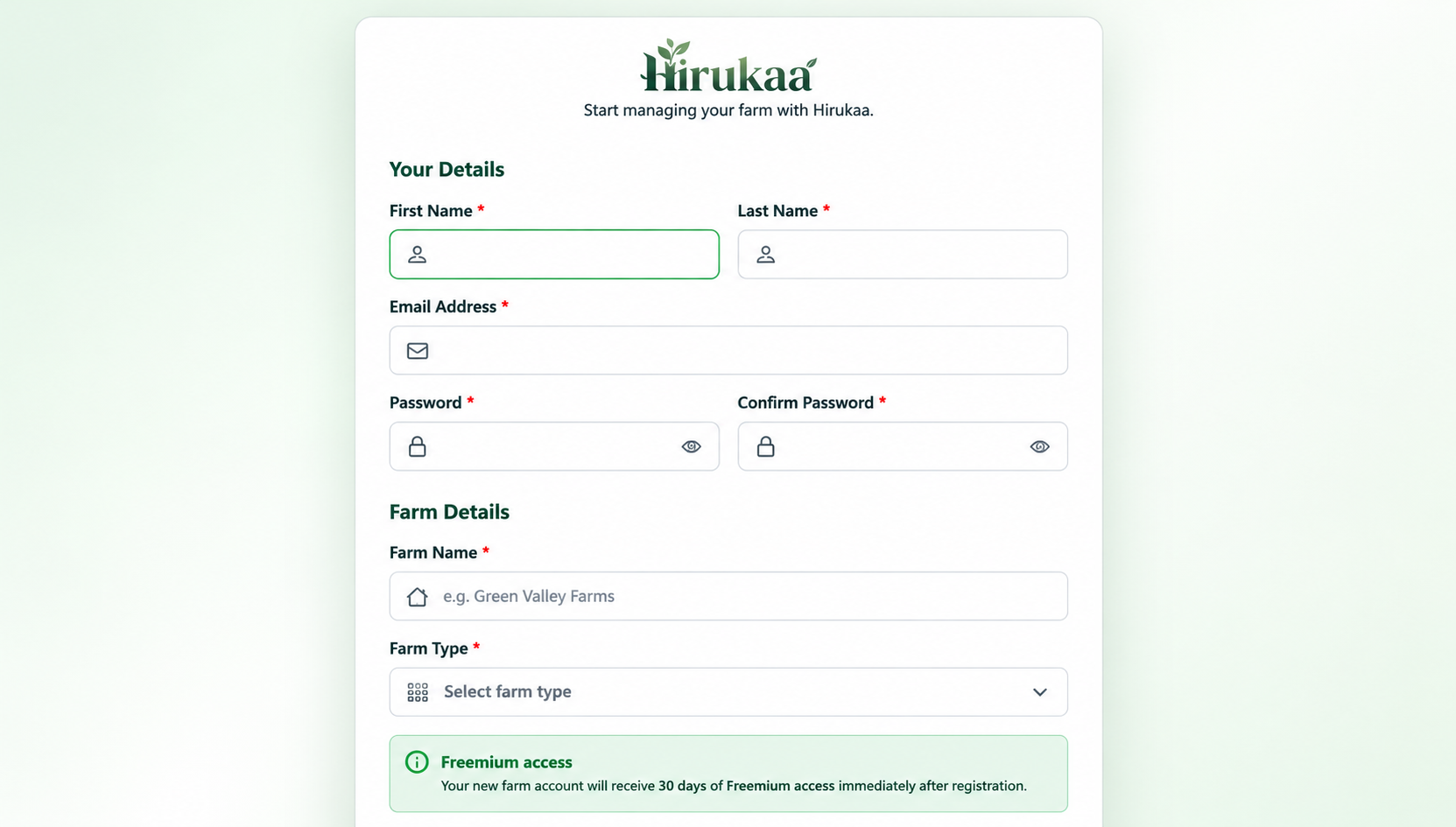
Step-by-Step Account Creation
Fill in your first name, last name, email address, secure password, and your farm's name in the designated fields.
Choose the specific category that matches your farm operations from the dropdown menu.
Click the Create Farm Account button at the bottom to submit your information and start your 30-day freemium access.
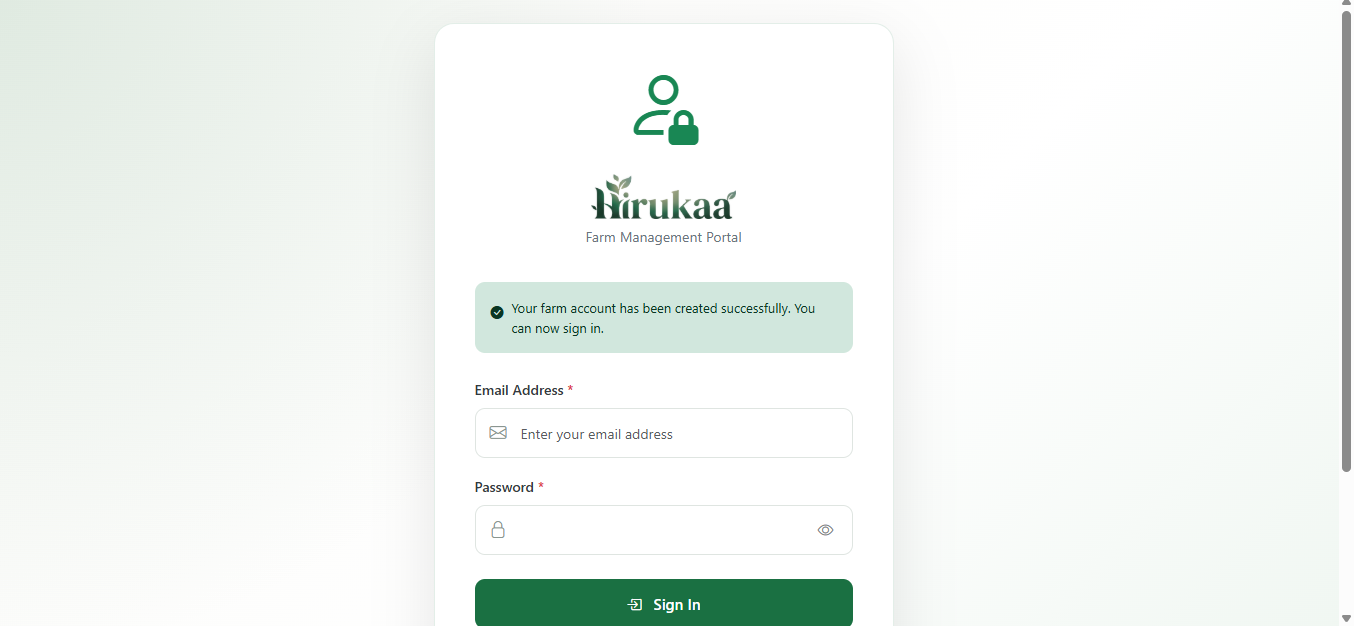
Step-by-Step Sign In
Type in the email address associated with your registered Hirukaa farm account.
Input your account password in the Password field.
Click the green Sign In button to authenticate and access your farm management portal dashboard.
Start with your farm profile and team, create your active batches, then record operations as they happen. The quality of your dashboard, reports and analytics depends on consistent daily records.
Getting started
The first step is to establish the farm workspace that will contain your operational records. Once your farm is selected, Hirukaa keeps the farm's records separated from other farms on the platform.
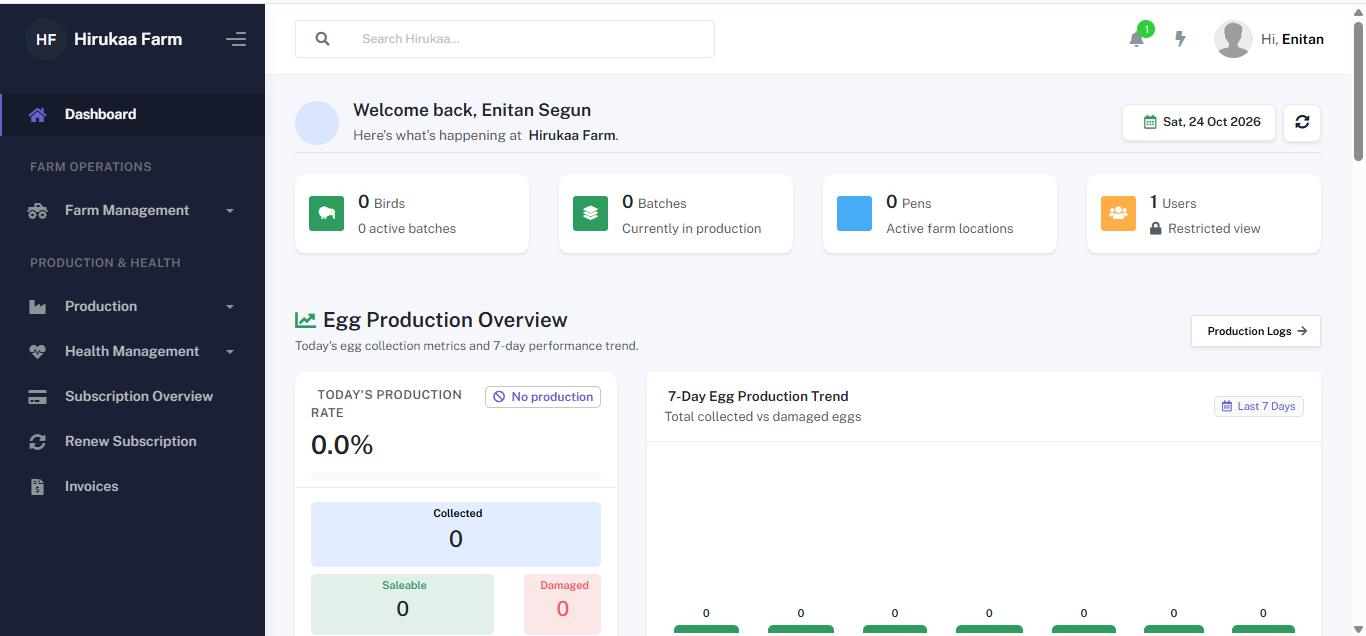
Dashboard Navigation & Overview
The Dashboard is the central hub for monitoring farm activity, flock statistics, and daily egg production metrics at a glance.
Access all core farm management modules including Farm Management, Production, Health Management, and Subscription Overview from the left sidebar panel.
View high-level summary cards showing total Birds, active Batches, active farm Pens, and registered Users in real-time.
Track today's collection statistics—including total Collected, Saleable, and Damaged eggs—alongside a 7-day performance trend chart.
Set up your farm
Add the farm information your team needs, including its identity, regional settings, and operational rules.
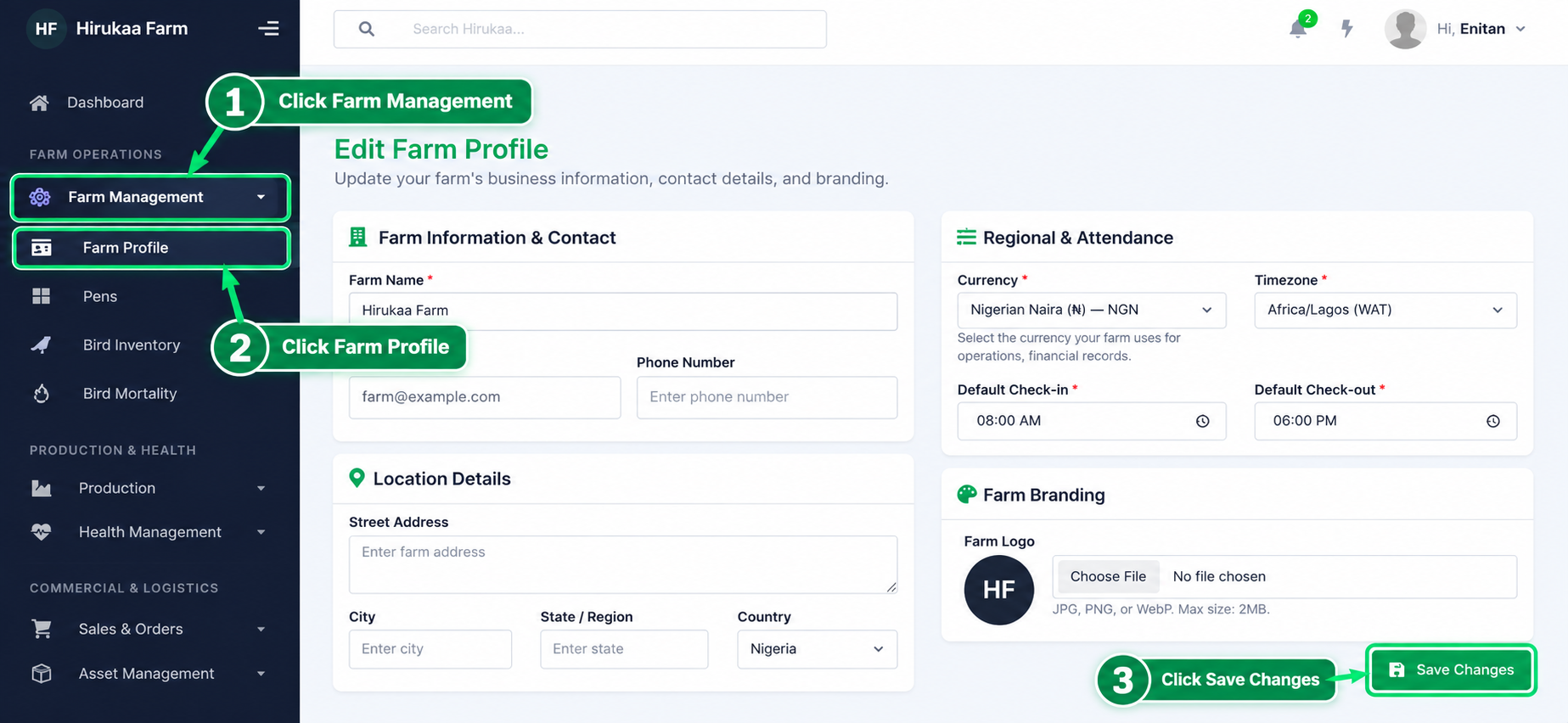
Step-by-Step: Setting Up Your Farm Profile
From the left sidebar under FARM OPERATIONS, click on Farm Management and select Farm Profile.
On the top-right corner of the Farm Profile page, click the green Edit Farm Profile button.
Fill in your Farm Information & Contact, Location Details, Regional & Attendance Settings (currency, timezone, check-in/out times), and upload your Farm Branding / Logo.
Click the green Save Changes button at the bottom right to apply your updated profile information.
Invite your team
Create or assign users and use roles and permissions to control which areas each person can access.
Choose your plan
Your subscription controls the number of user licences and the features available to the farm.
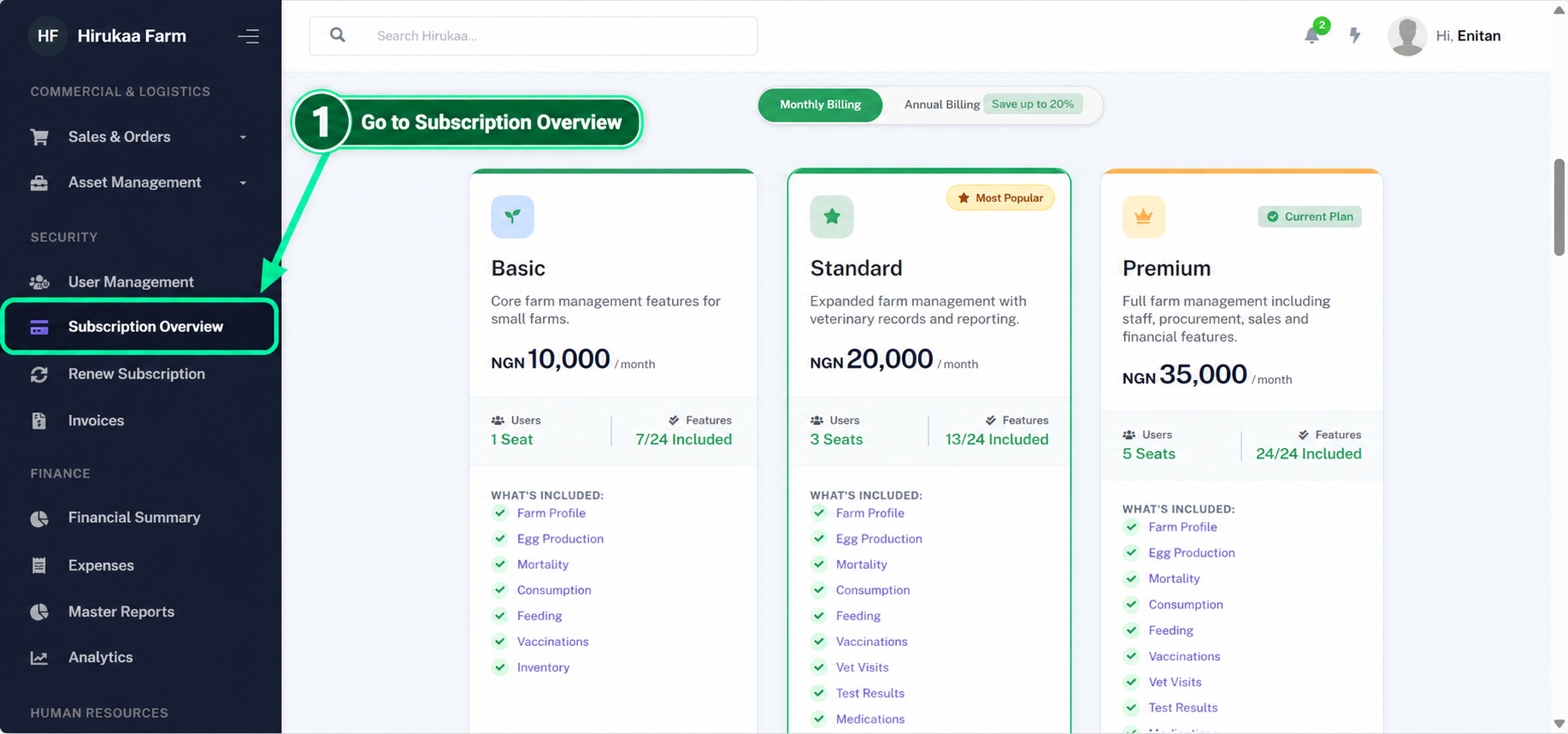
Step-by-Step: Managing Subscriptions & Billing
On the left sidebar navigation menu, click on Subscription Overview or Renew Subscription under the account section.
Choose between available tier plans and select your preferred billing interval (e.g., Monthly or Annual).
Verify that your selected plan includes the required user seat capacities and feature modules needed for your farm crew.
Confirm the subscription request to generate your payment invoice, complete processing, and instantly activate your plan features.
Start recording
Create batches and begin capturing production, feed, health, sales and financial activity.
Add your Hirukaa onboarding video here. Replace this panel with a YouTube/Vimeo iframe or an HTML5 video when your training video is ready.
Farm management
Farm management provides the core configuration and flock tracking foundation for Hirukaa, empowering farm managers with unmatched clarity, structured oversight, and complete operational visibility.
1. Farm Profile
Manage your farm's fundamental business details, contact information, branding logos, and regional operational defaults.
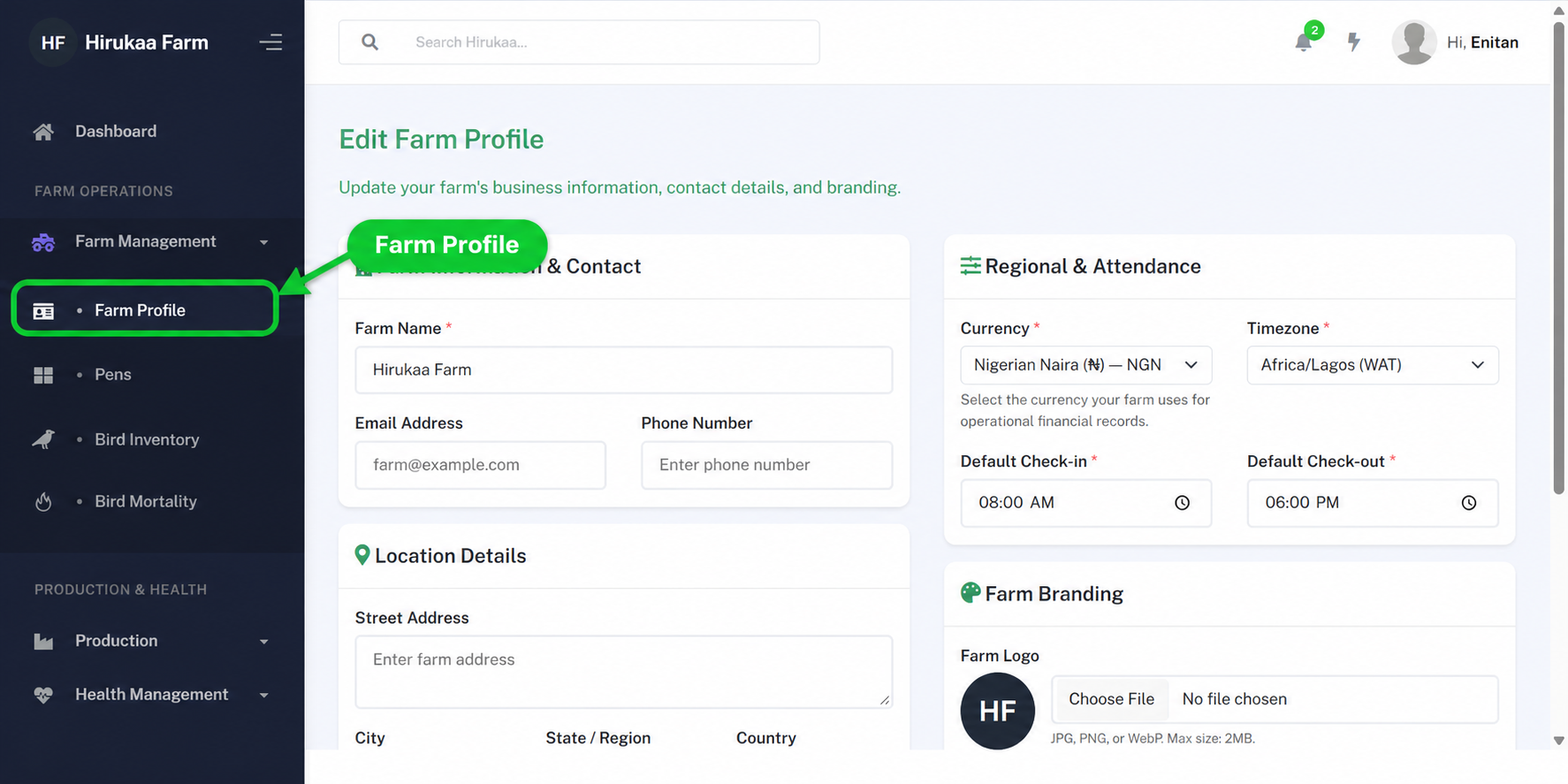
Navigate to Farm Management on the sidebar and click Farm Profile.
Modify farm names, currency, regional timezones, and upload your farm identification logo.
2. Pens Management
Configure housing structures, partitions, and physical locations where individual poultry batches are kept.
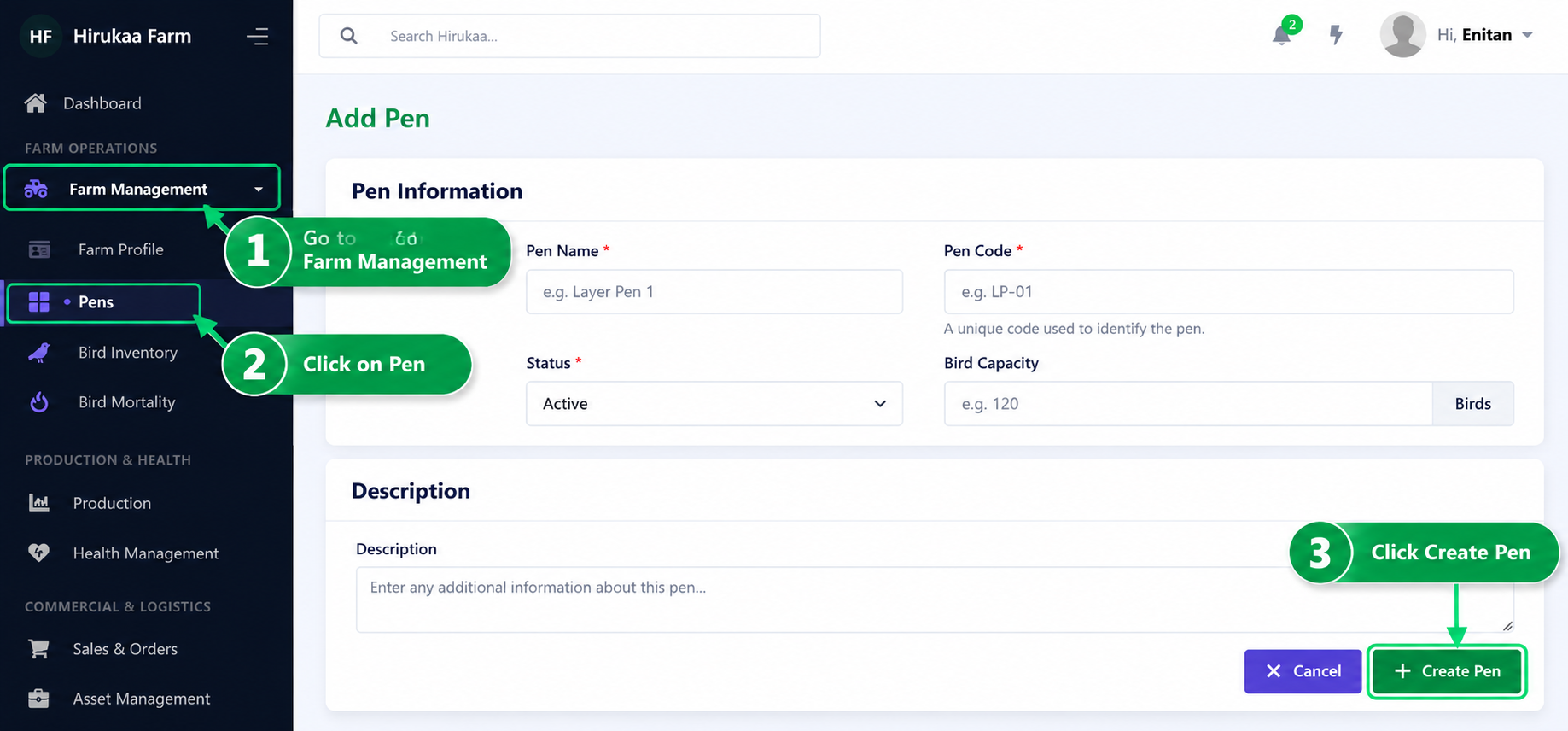
Select Pens from the Farm Management submenu to review active housing spaces.
Define new pens or houses to seamlessly allocate incoming flocks and manage capacity constraints.
3. Bird Inventory & Batches
Batches serve as the operational foundation for flock tracking, recording bird types, arrival dates, and statuses.
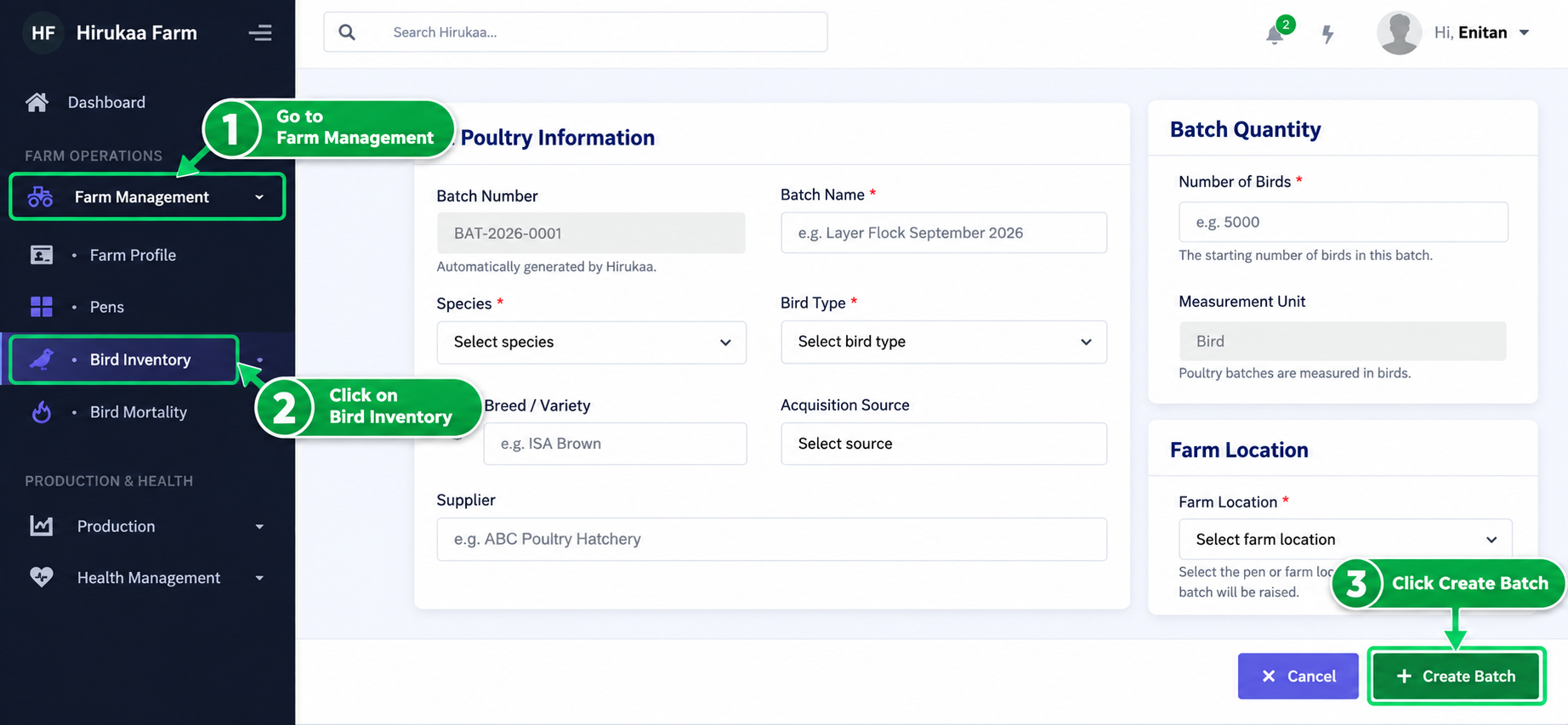
Click on Bird Inventory to view current flocks and access the batch creation form.
Input batch names, quantities, species, placement dates, and assign specific pen locations.
Egg production, mortality, and feed consumption are linked directly to each batch. Keeping batch data precise makes downstream reporting reliable and useful.
Egg production
The egg production module is used to record daily collection and provide the data used for production monitoring. Records can capture laying birds, eggs collected, damaged eggs, saleable eggs, crates, loose eggs, production rate and breakage rate.
Daily collection
Record the date, collection time and quantity collected for the selected batch.
Saleable vs damaged
Separate usable eggs from damaged eggs so production quality can be monitored.
Production rate
Use laying bird numbers and egg output to understand production performance.
Trend analysis
Use dashboard charts and analytics to compare production across days and periods.
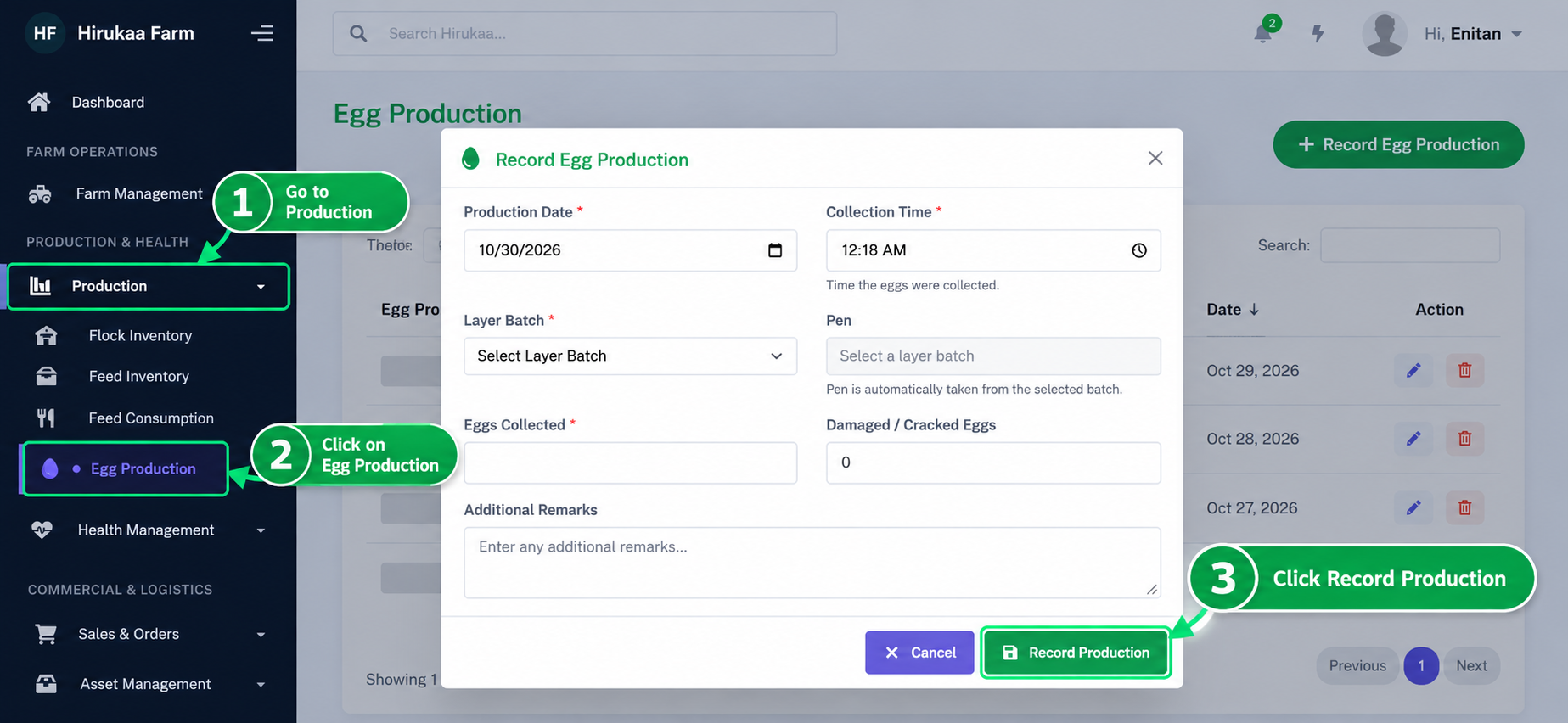
Daily Production Workflow
On the left sidebar menu, expand Production and click on Egg Production to open the operational panel.
Click the green + Record Egg Production button located in the upper-right corner of the production overview.
Select the Production Date, Collection Time, and matching active Layer Batch. Input your counts for Eggs Collected and any Damaged / Cracked Eggs, adding remarks if necessary.
Review the numbers and click the green Record Production button inside the modal to instantly update your inventory and metrics.
Record production on the day it occurs rather than entering several days at once. This gives trends and operational alerts a more accurate picture.
Feed & inventory
Feed management combines stock records with consumption records. The inventory side records purchased stock and remaining quantities, while feed consumption records how much feed was given and actually consumed.
Feed inventory
Record feed type, quantity purchased, remaining quantity, supplier, cost per kilogram, total cost and purchase date.
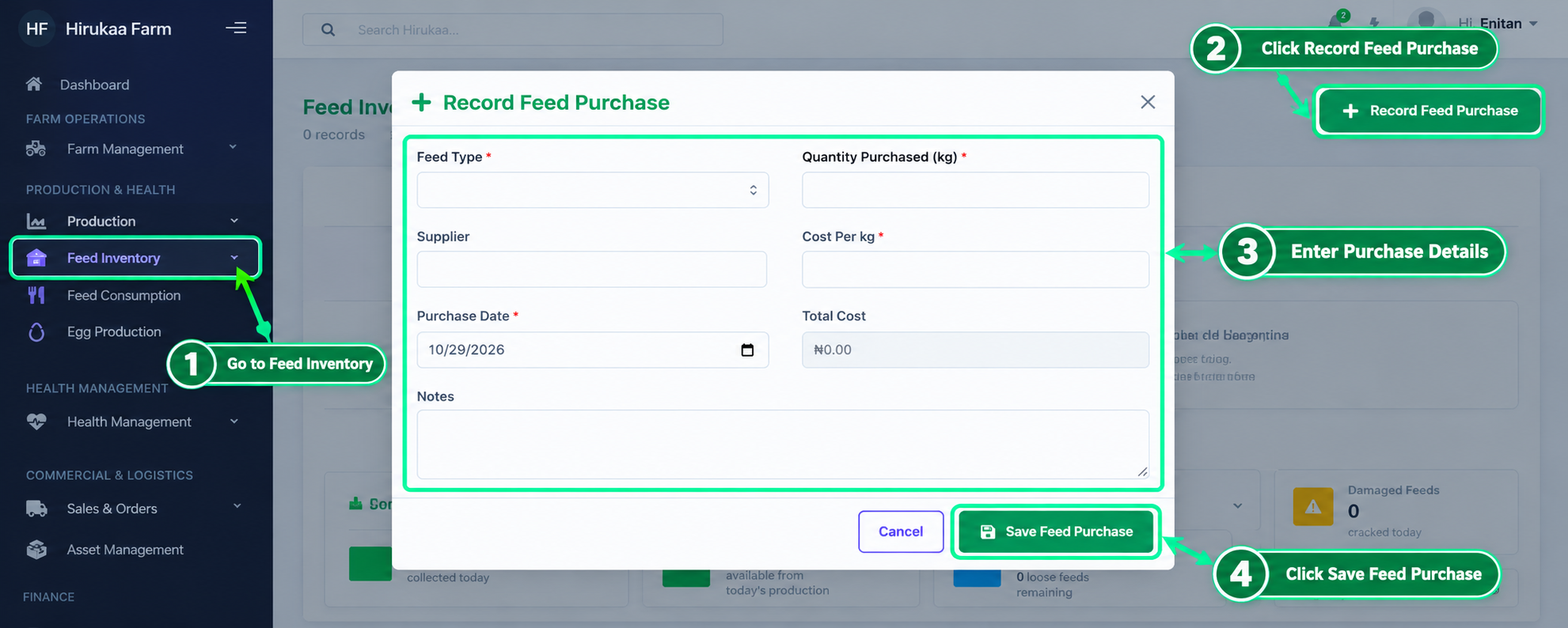
On the left sidebar under PRODUCTION & HEALTH, expand Production and click on Feed Inventory to view current stock.
Click the green button to add a new stock entry, filling in required fields such as Feed Name, Quantity Purchased, Unit Price, and Supplier.
The inventory list displays Remaining Quantity, Total Cost, and Purchase Date, allowing for accurate low-stock management.
Feed consumption
Record the relevant batch, feed type, birds alive, feed given, leftover and actual consumed quantity. Hirukaa can use these values to present feed-per-bird and efficiency information.
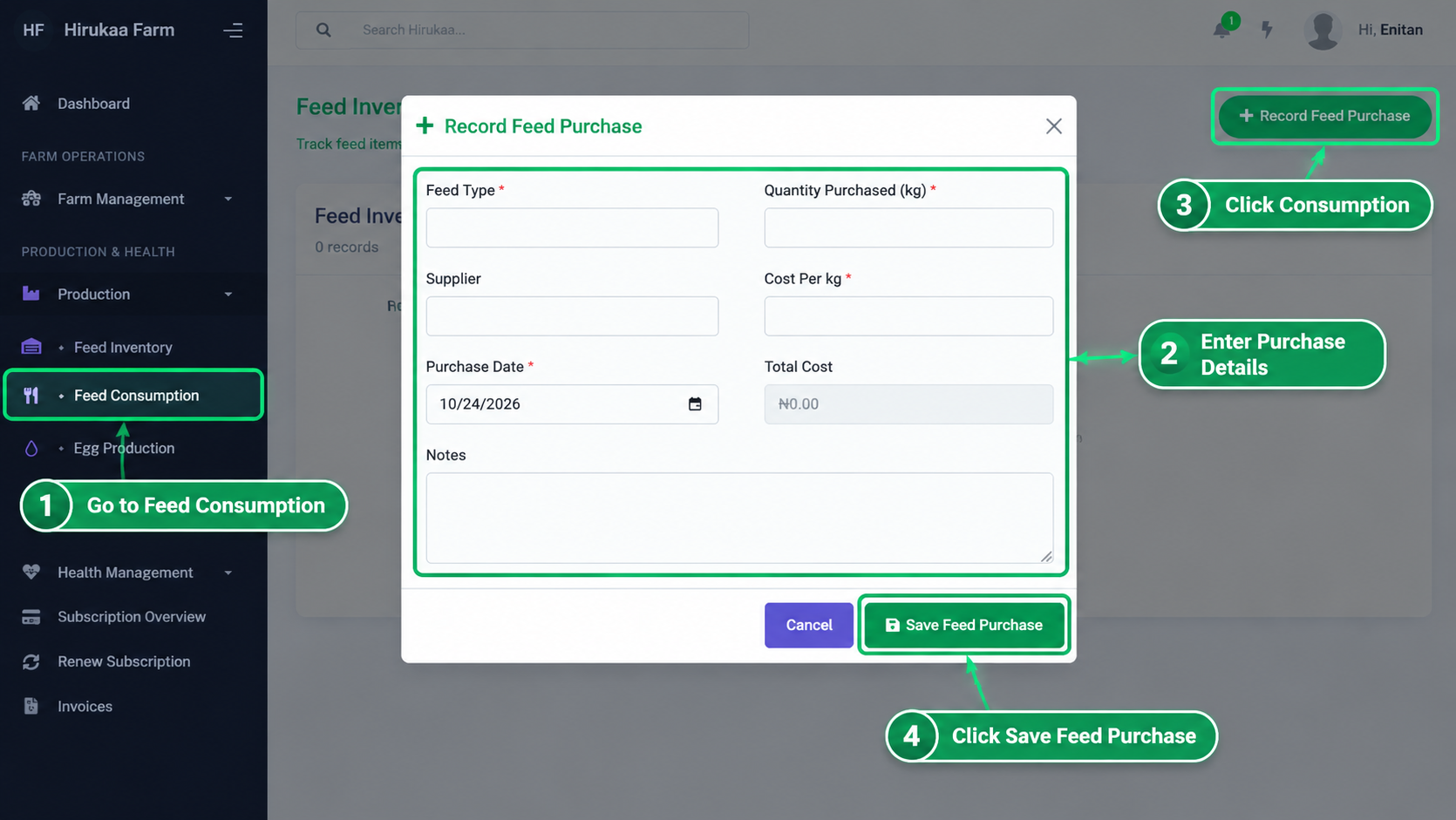
Select Feed Consumption from the sidebar menu (under the Production section) to log daily usage.
Create a new entry by selecting the active Batch, Feed Type, entering the number of Birds Alive, and inputting Feed Given (and any leftover amount).
Hirukaa calculates the Actual Consumed amount, providing data for feed-per-bird and overall production efficiency metrics.
Stock visibility
Know what feed you have remaining before the next purchase is needed.
Consumption visibility
Compare feed use with flock size and operational performance.
Mortality tracking
Monitor flock size adjustments, record losses accurately, and automatically update active batch quantities with comprehensive mortality tracking.
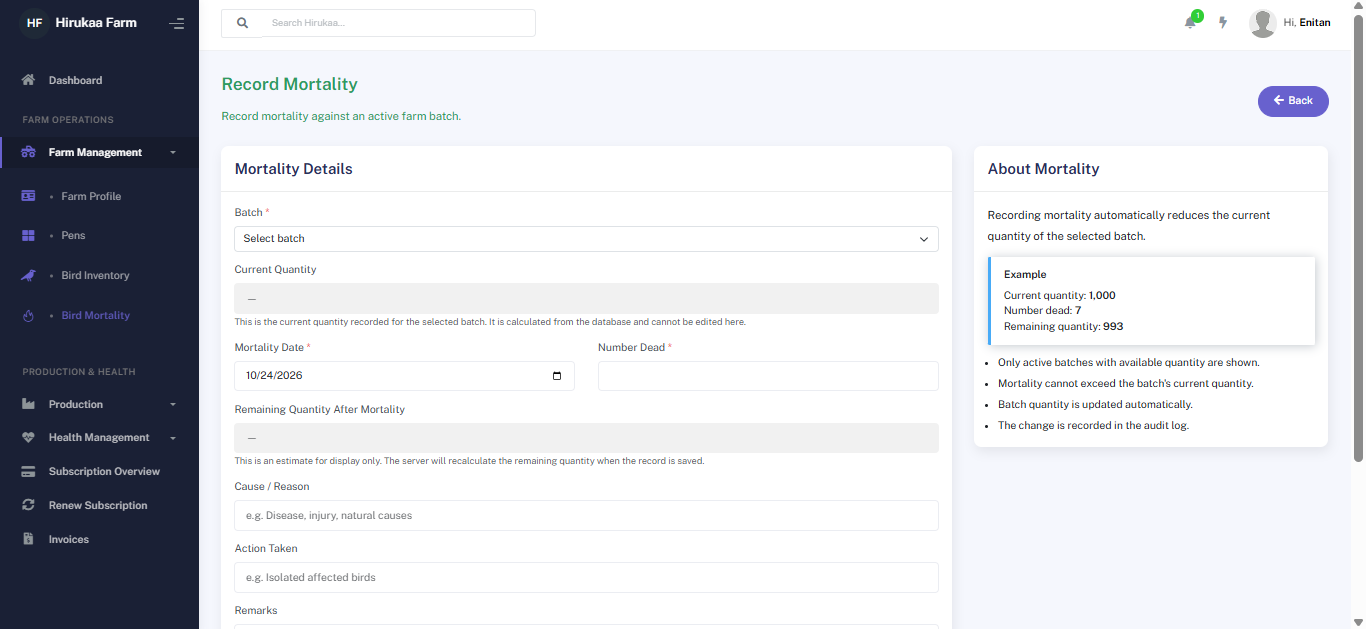
Navigate to Farm Management on the sidebar and click on Bird Mortality.
Select the affected batch, input the number dead, specify causes or reasons, and click save to automatically adjust flock counts.
Health management
Hirukaa provides complete veterinary oversight across six specialized modules, ensuring preventative care, medication schedules, and clinical diagnostics are meticulously managed.
1. Vaccinations
Record target batches, vaccine types, administration dates, quantities, and upcoming follow-up due dates.

2. Vaccine Catalogue
Maintain a centralized directory of available immunizations, standard dosages, and treatment types utilized across the farm.
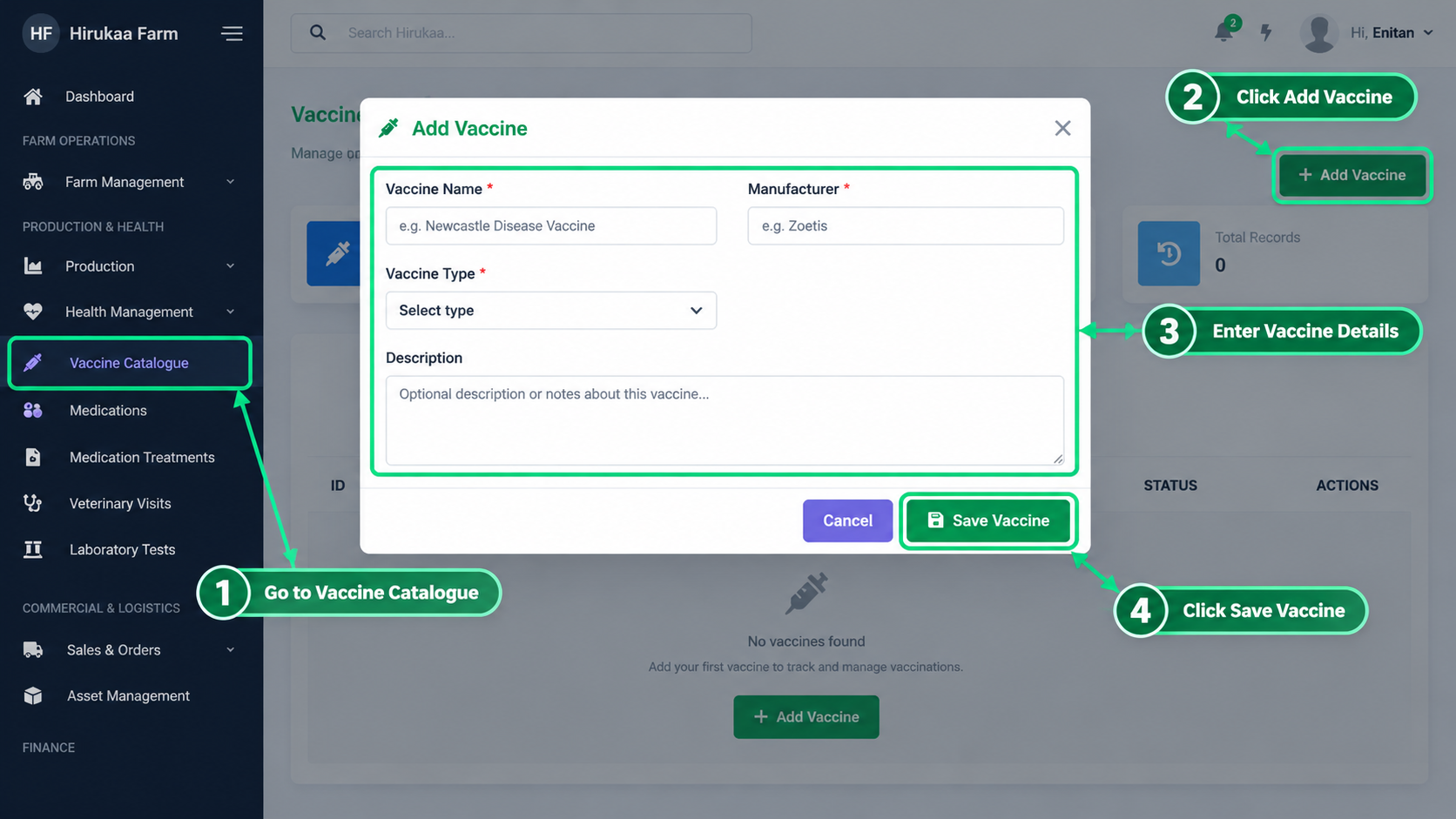
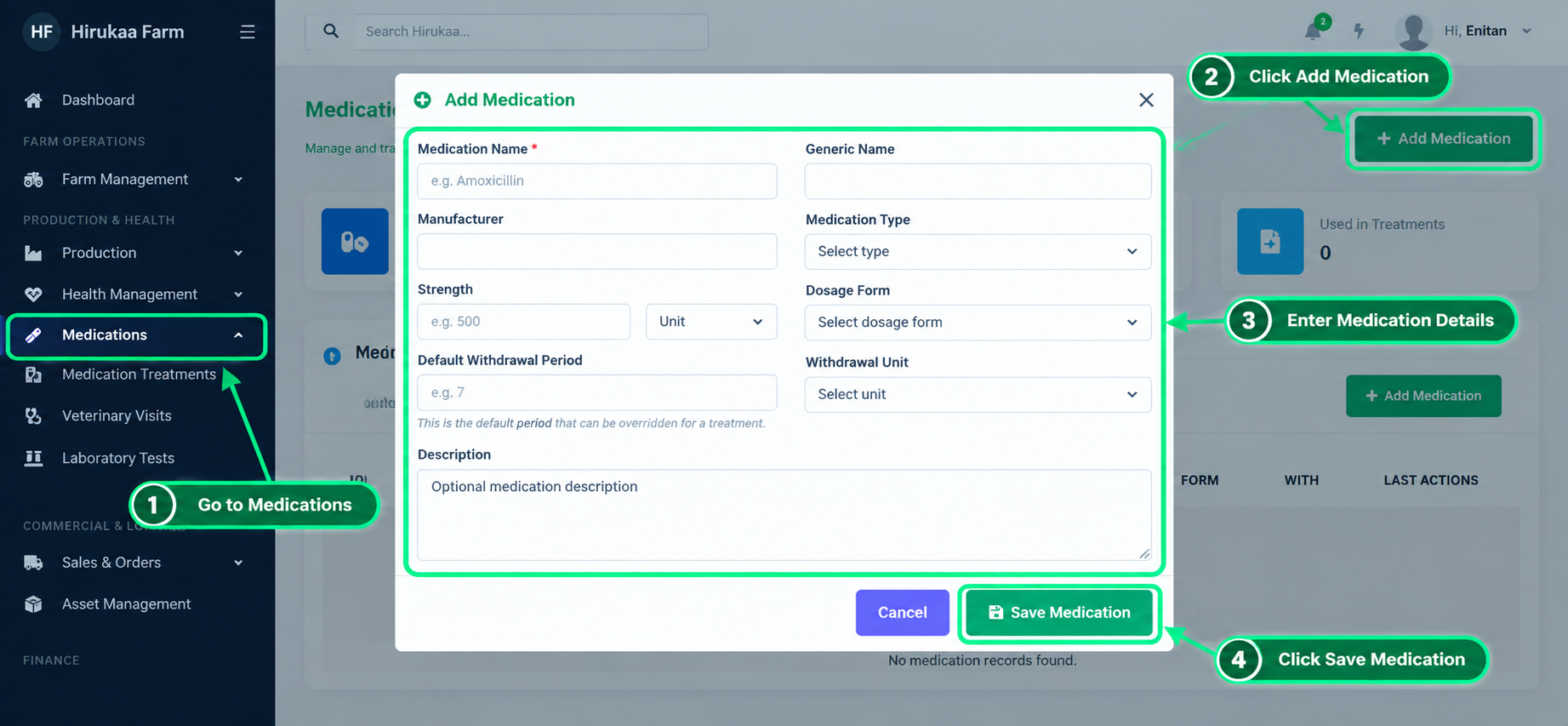
3. Medications
Keep an inventory of pharmaceutical supplies, medicinal drugs, and stock levels available for therapeutic care.
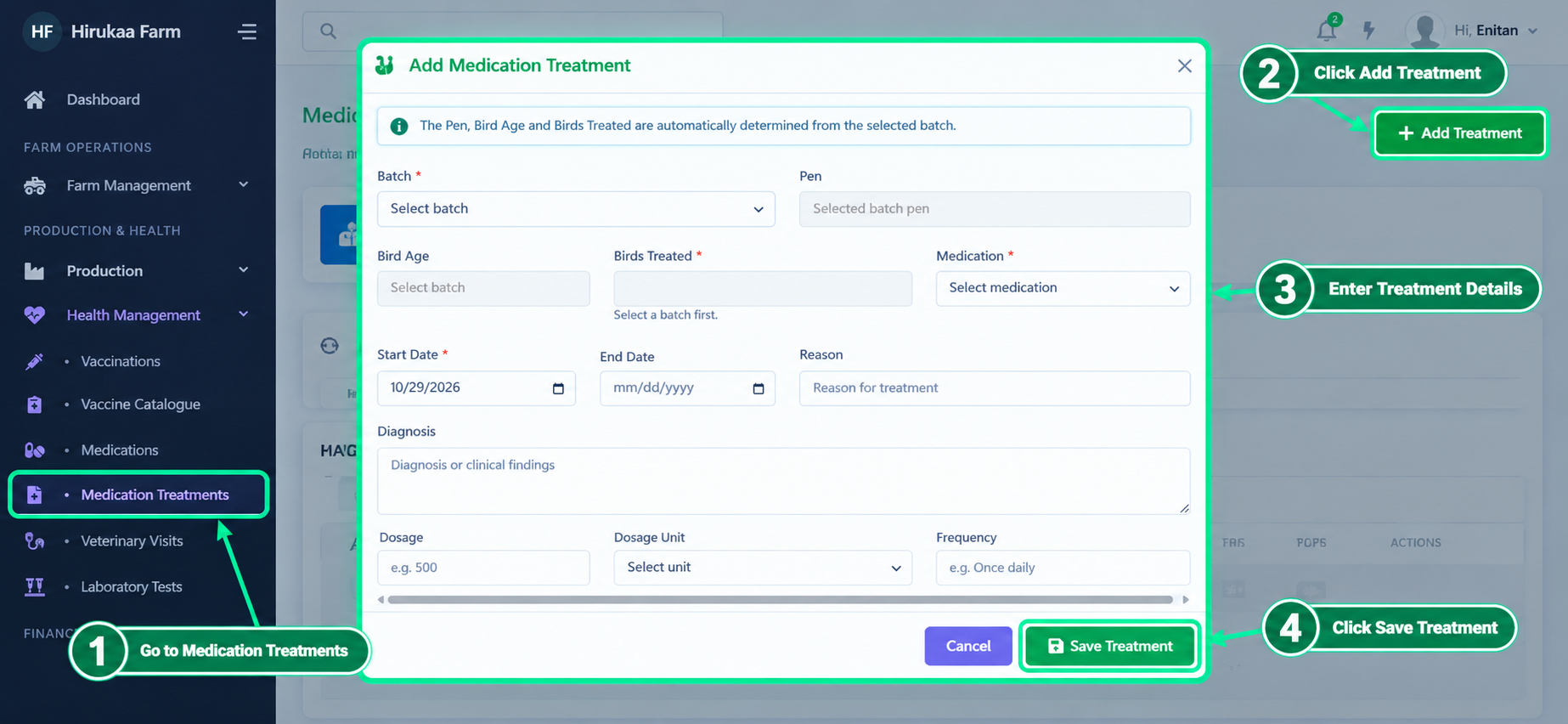
4. Medication Treatments
Log active treatment cycles administered to specific bird batches to monitor recovery and medical compliance.
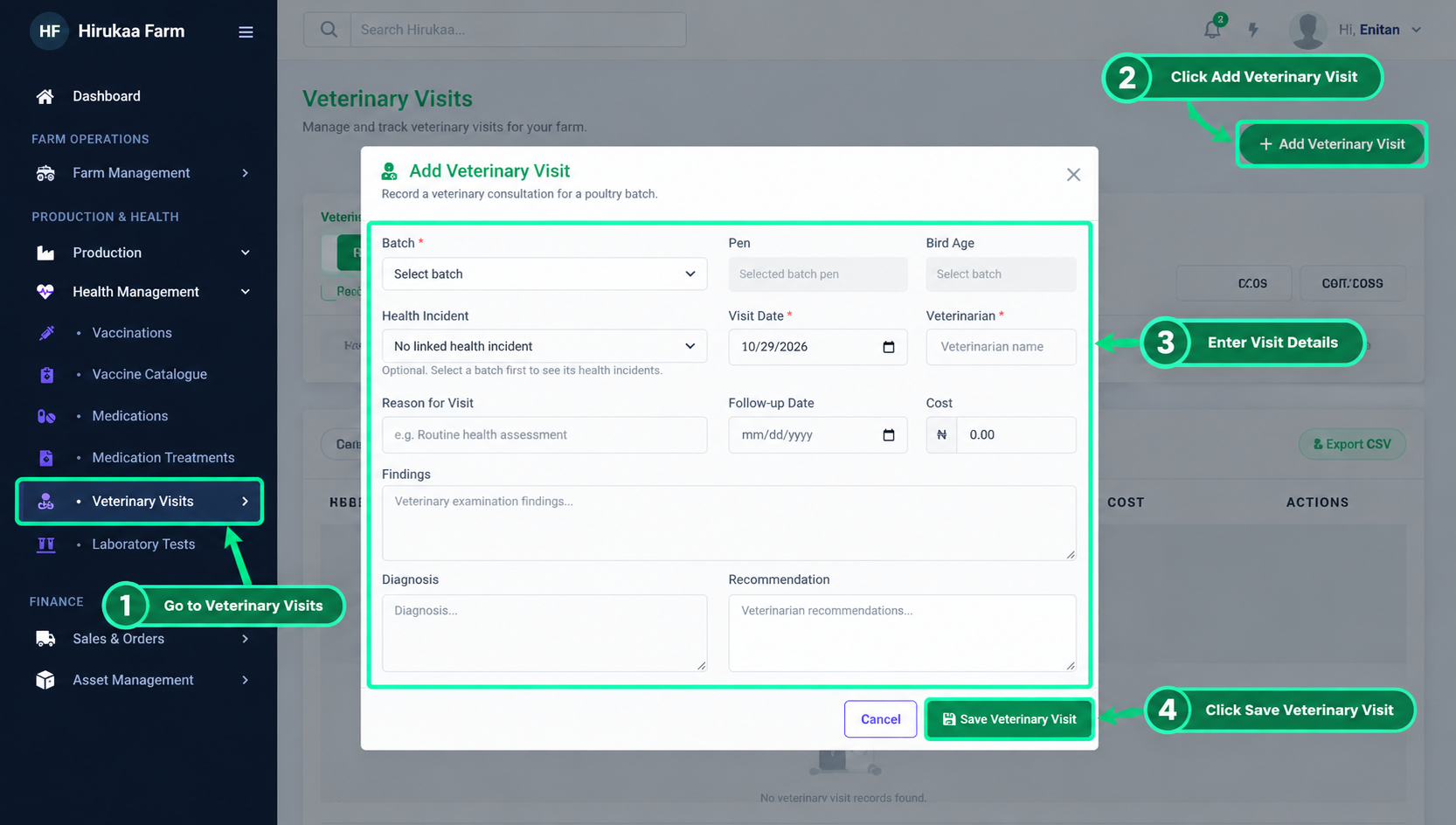
5. Veterinary Visits
Schedule and log professional veterinary consultations, professional recommendations, and farm inspection notes.
6. Laboratory Tests
Record diagnostic test results, lab samples, and pathological evaluations conducted for flock disease screening.
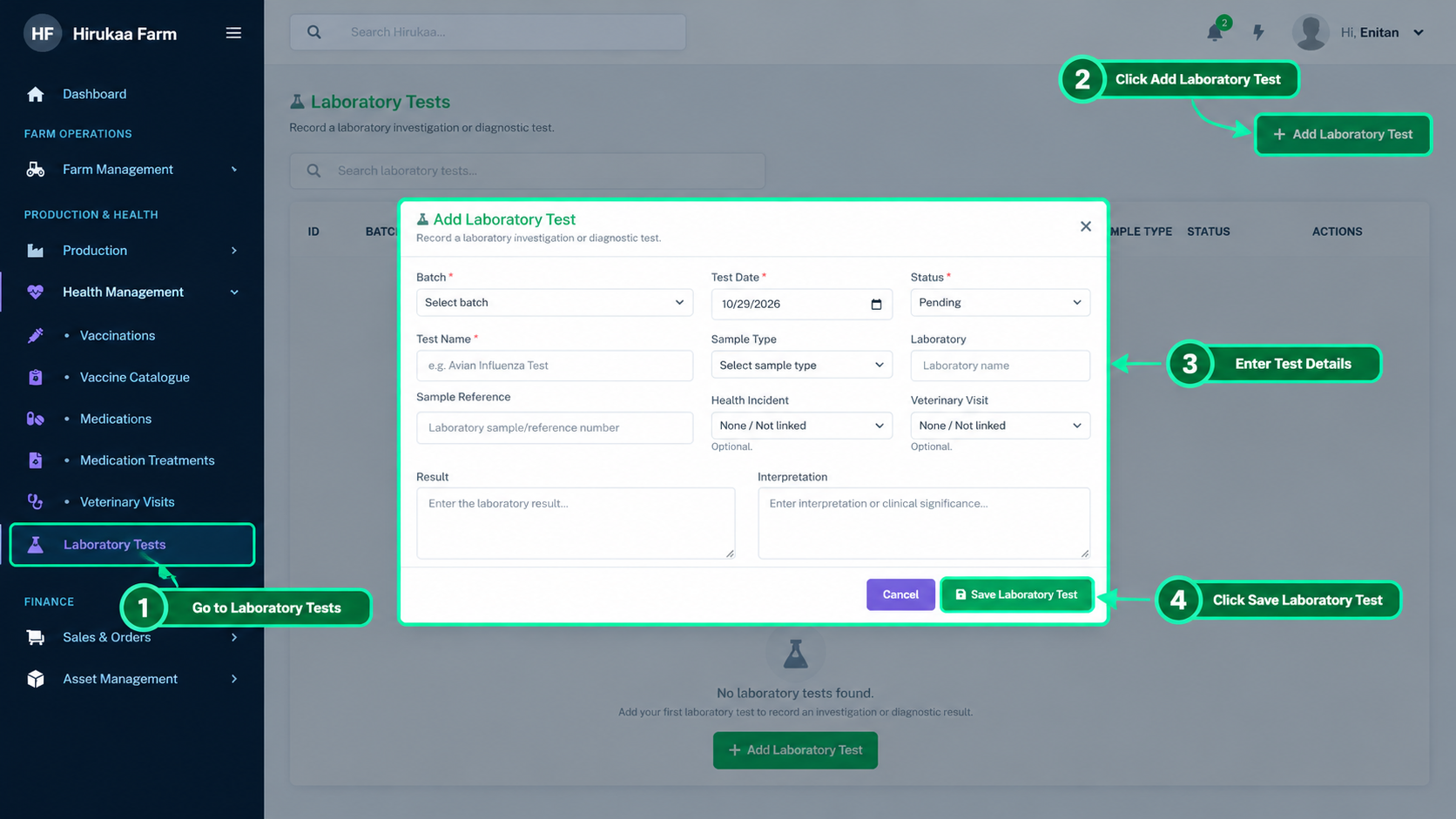
Expand the Health Management menu on the sidebar to access all sub-modules.
Log clinical treatments, track vaccination schedules, and maintain complete flock health audit trails.
Sales & orders
Sales records capture commercial activity, customer information, payment status, and outstanding balances, providing a complete view of revenue and receivables.
1. Customer management
Set up and maintain customer profiles to track purchase history, contact details, and account balances.
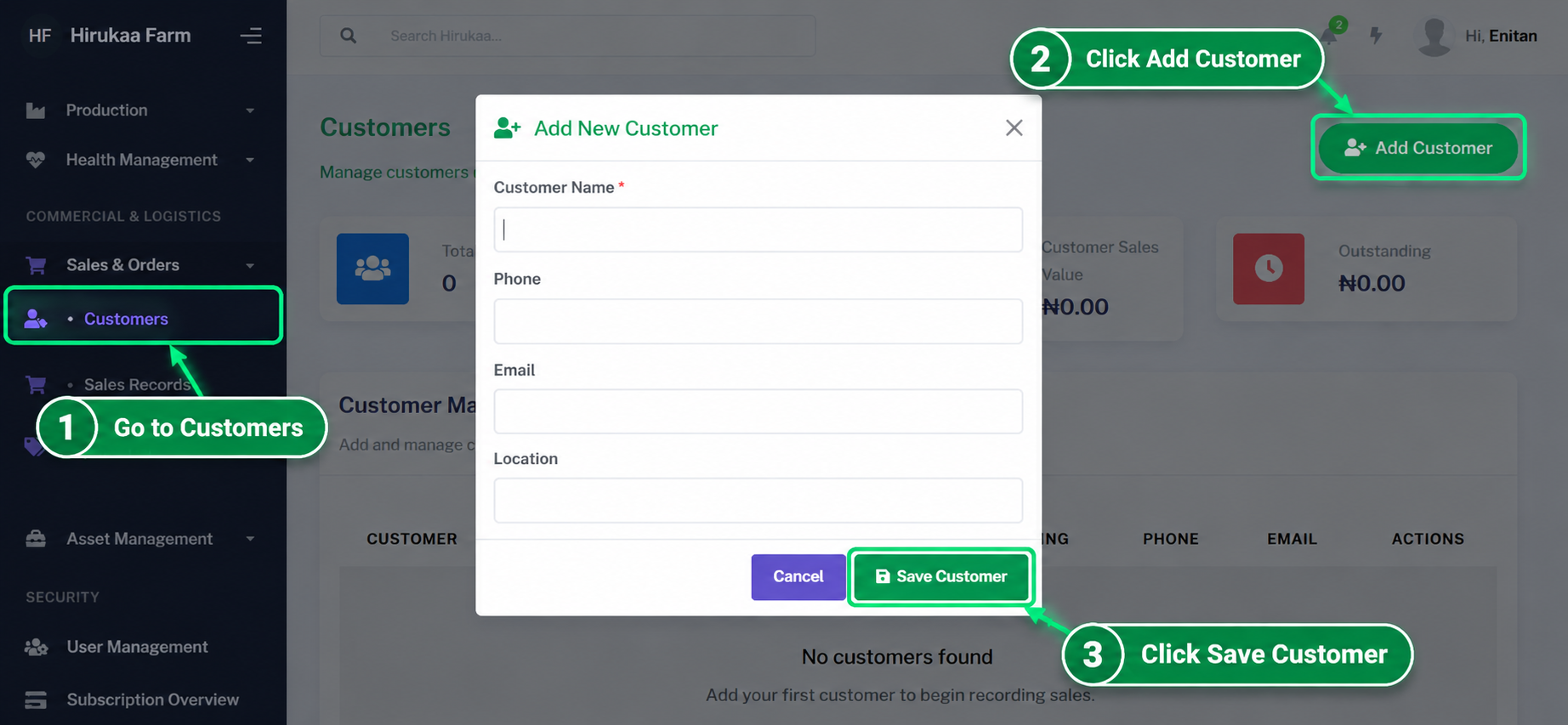
Under COMMERCIAL & LOGISTICS, expand Sales & Orders and select Customers.
Create new profiles by entering contact details, address, and default payment terms for accurate credit tracking.
2. Sales records
Log transactions with specific quantities, pricing, customer linkages, and real-time payment status.
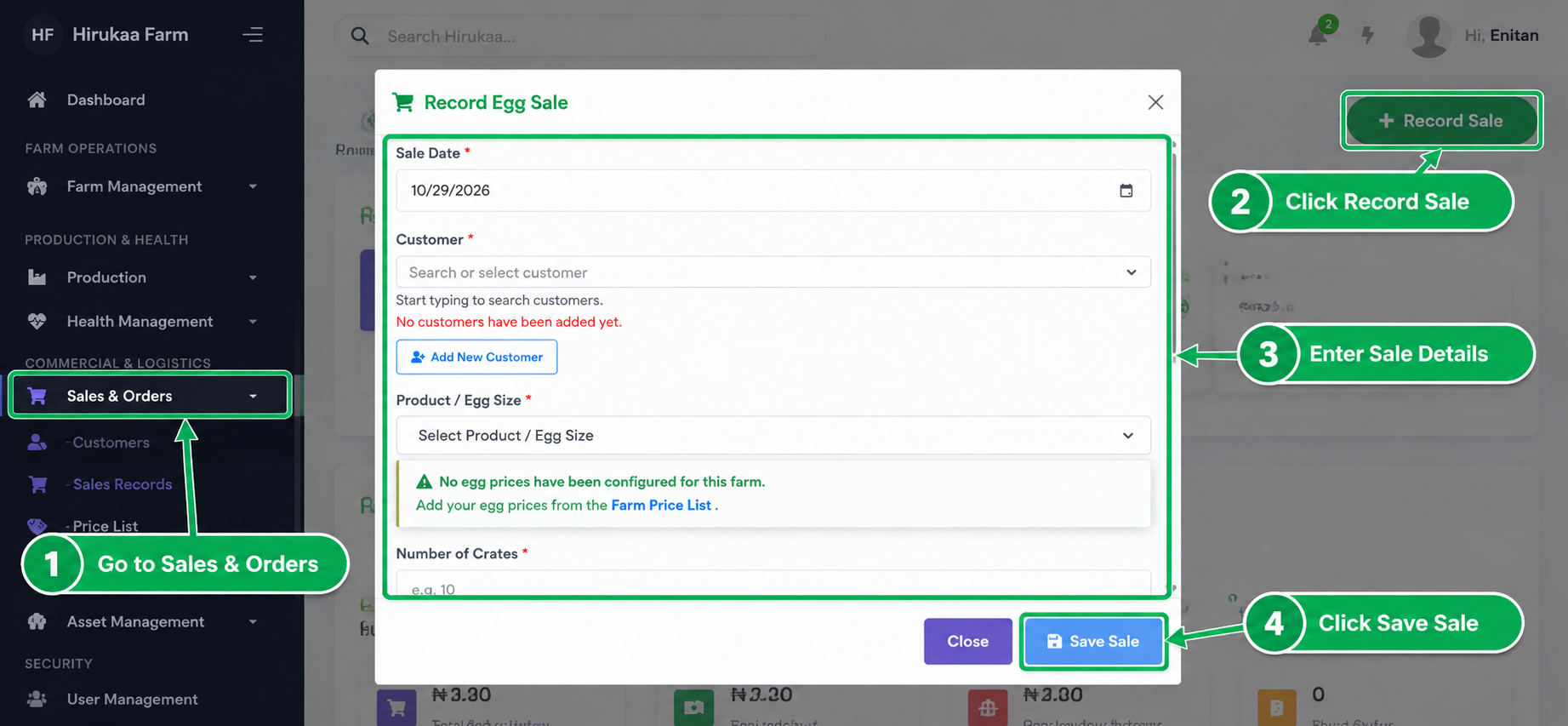
Select Sales Records from the submenu and click the action button to log a new transaction.
Choose the customer, select items (e.g., egg crates, birds), enter quantity, amount paid, and payment status.
Confirm the transaction to instantly update inventory balances, ledger entries, and customer outstanding totals.
3. Price list setup
Configure default product pricing, unit metrics, and tier rates for eggs, birds, manure, and farm byproducts.
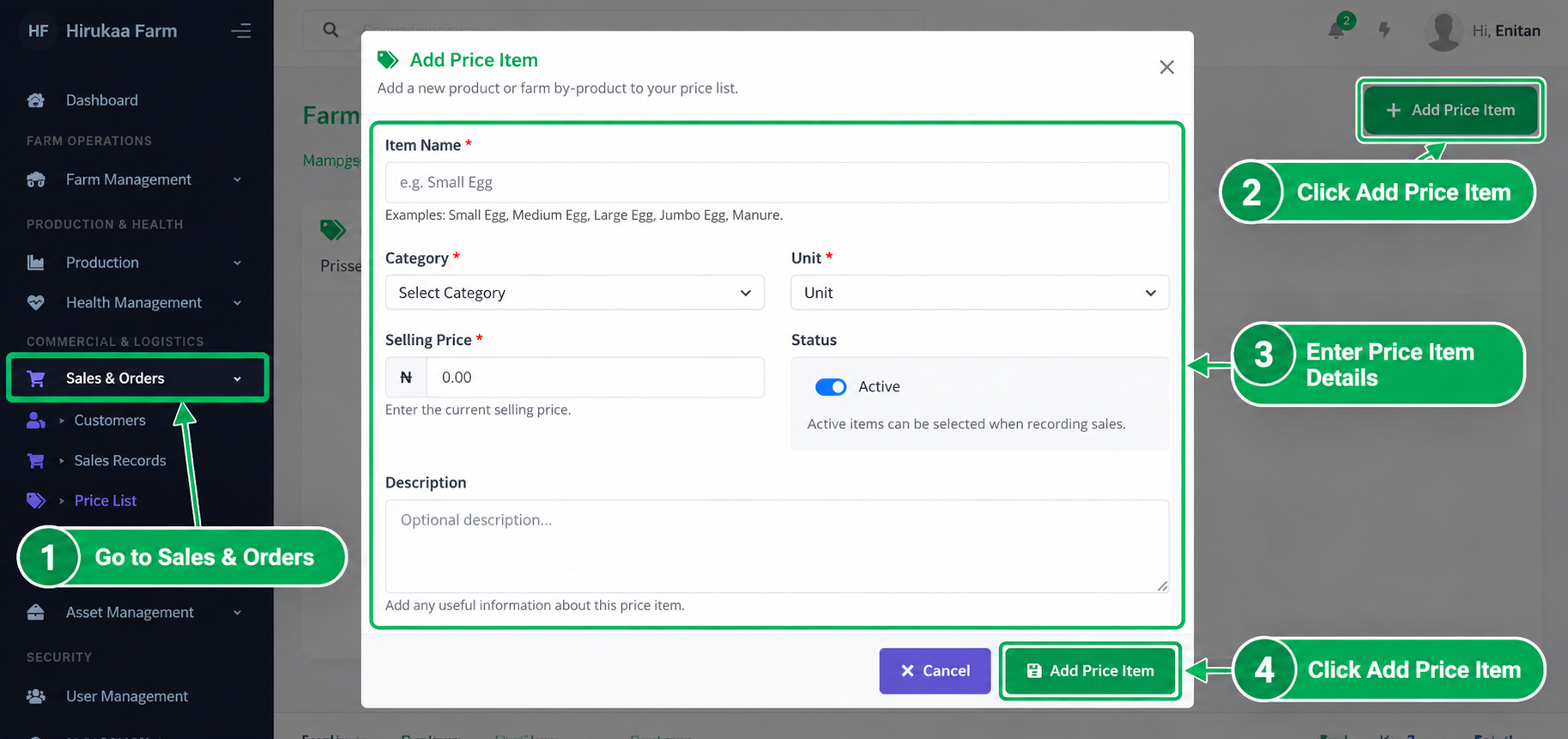
Navigate to the Price List tab under Sales & Orders to view current selling prices.
Update prices per unit (e.g., per crate, per kg, per head) for quick, consistent billing during sales entry.
Asset management
Track and maintain equipment, machinery, and physical inventory across your farm operations to ensure high reliability and minimize downtime.
1. Assets register
Maintain an organized inventory list of all farm machinery, tools, and valuable assets with identification numbers and purchase records.
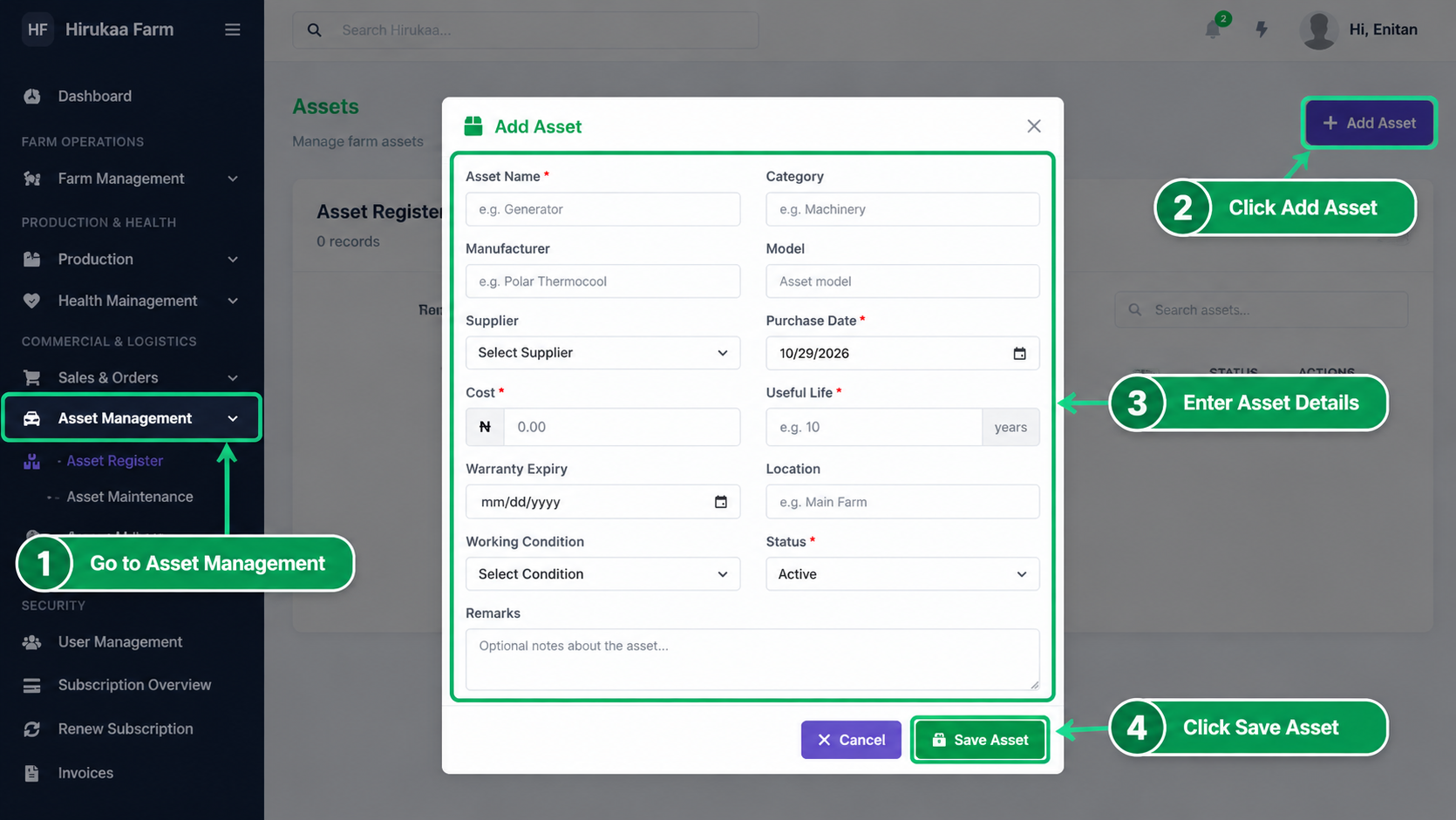
Expand Asset Management on the sidebar and click on Assets Register.
Record asset names, purchase values, serial numbers, and current operational status.
2. Asset maintenance
Schedule and track routine servicing, repairs, and maintenance history for all critical farm equipment.
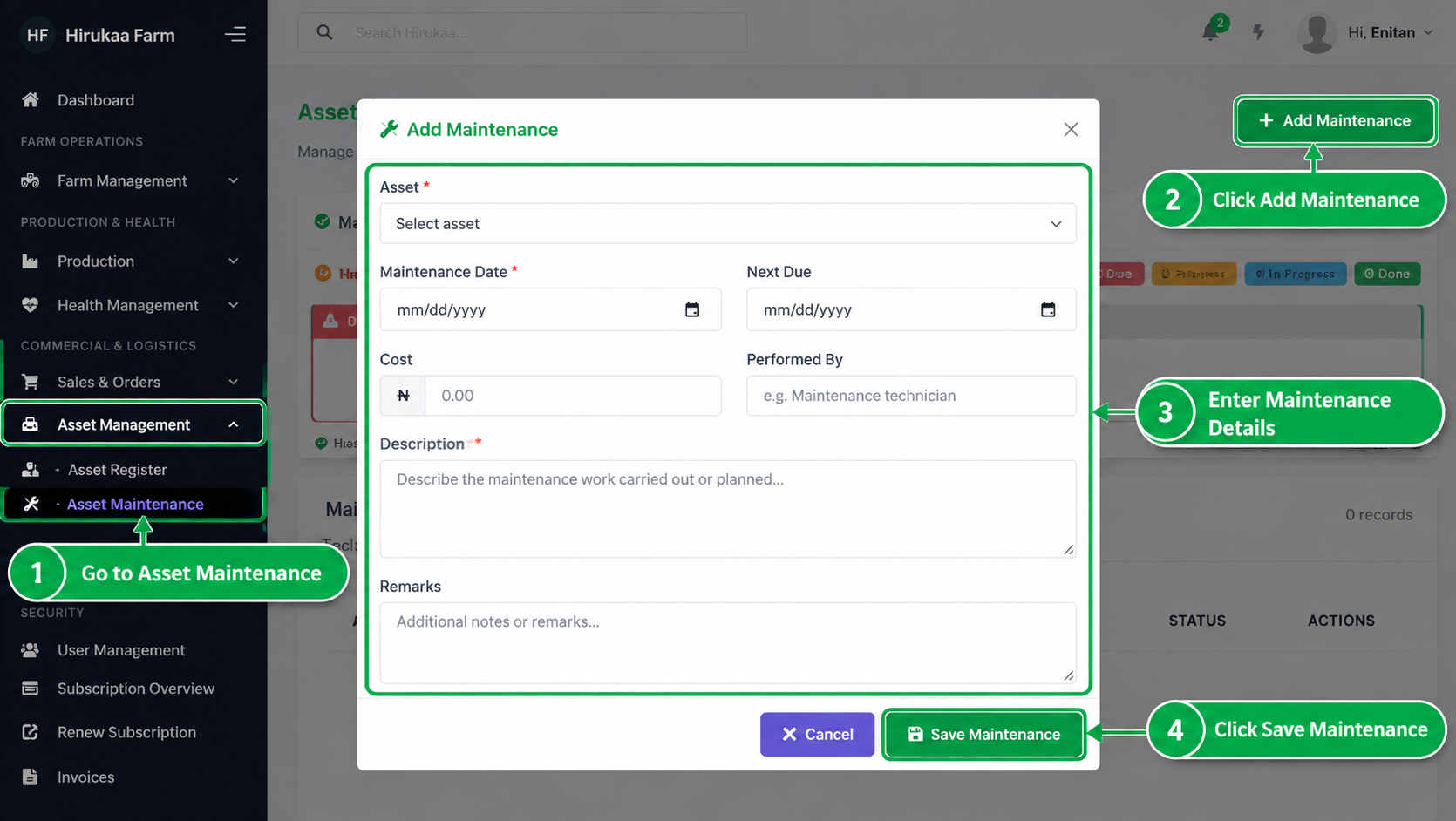
Select Asset Maintenance from the asset management menu.
Record maintenance dates, service costs, technician notes, and next scheduled service intervals.
Expenses management
Expenses provide the farm's comprehensive spending record, capturing transaction details to maintain an accurate account of operational outflows.
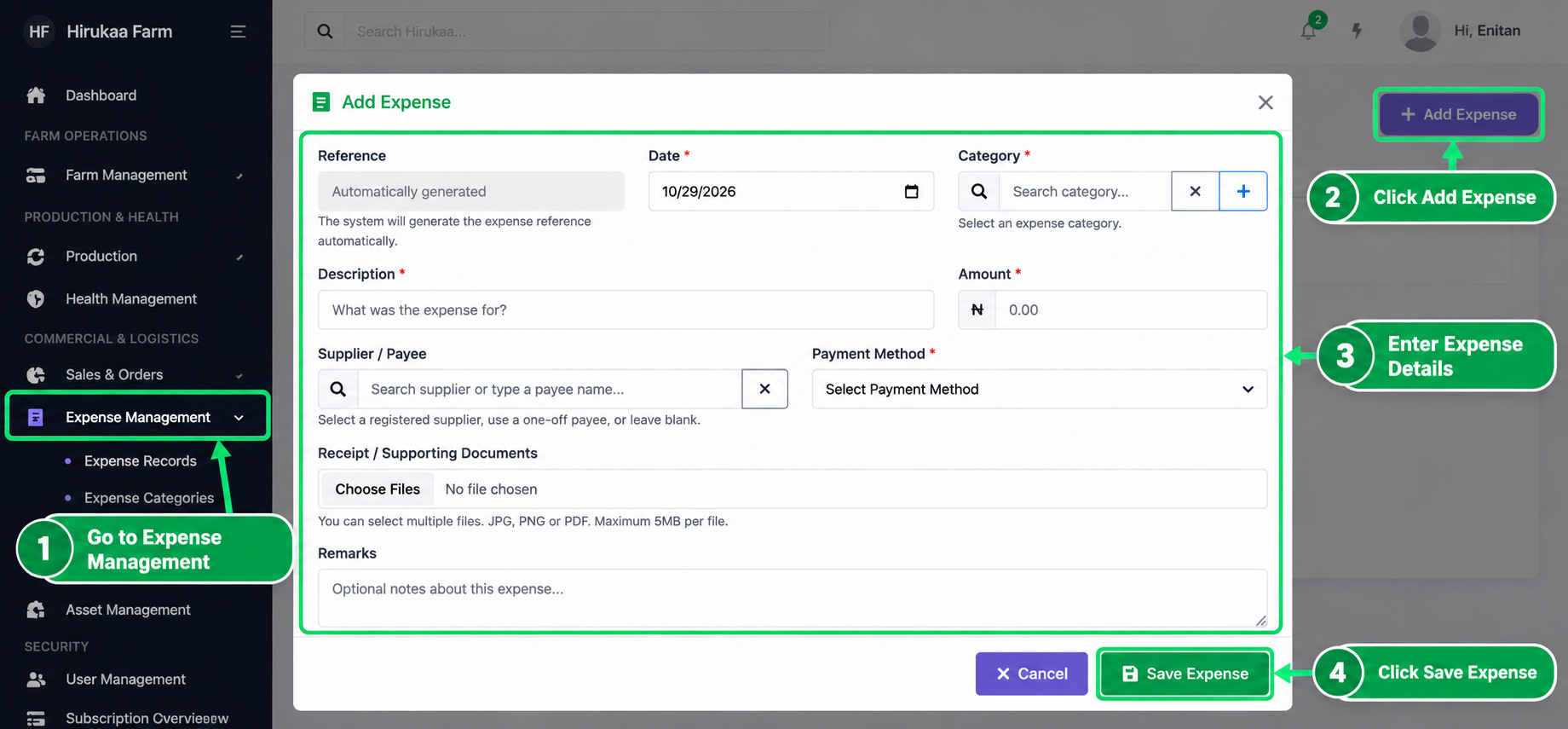
Navigate to the finance section on the sidebar to log, categorize, and track all operational expenditures seamlessly.
Capture the date, category, supplier, description, amount, payment method, and supporting remarks to keep records audit-ready.
Procurement
Procurement supports purchasing workflows, suppliers, and purchase orders, while linked expense records provide the accounting source for spending summaries.

Handle suppliers, purchase requests, and purchase orders including order totals, delivery costs, discounts, tax, payments, and balances.
Ensure smooth integration with linked expense logs while adhering to reporting rules.
Hirukaa's financial reporting should avoid double-counting procurement or salary records where the corresponding expense record already represents the cost.
Master reports dashboard
Reports are designed for filtered, exportable operational information, empowering farm managers with unmatched clarity and complete data visibility.
Master Reports
Select a report, apply date and module filters, review records and export supported reports.
Exports
Use the available PDF and CSV export capabilities according to the farm's subscription features.
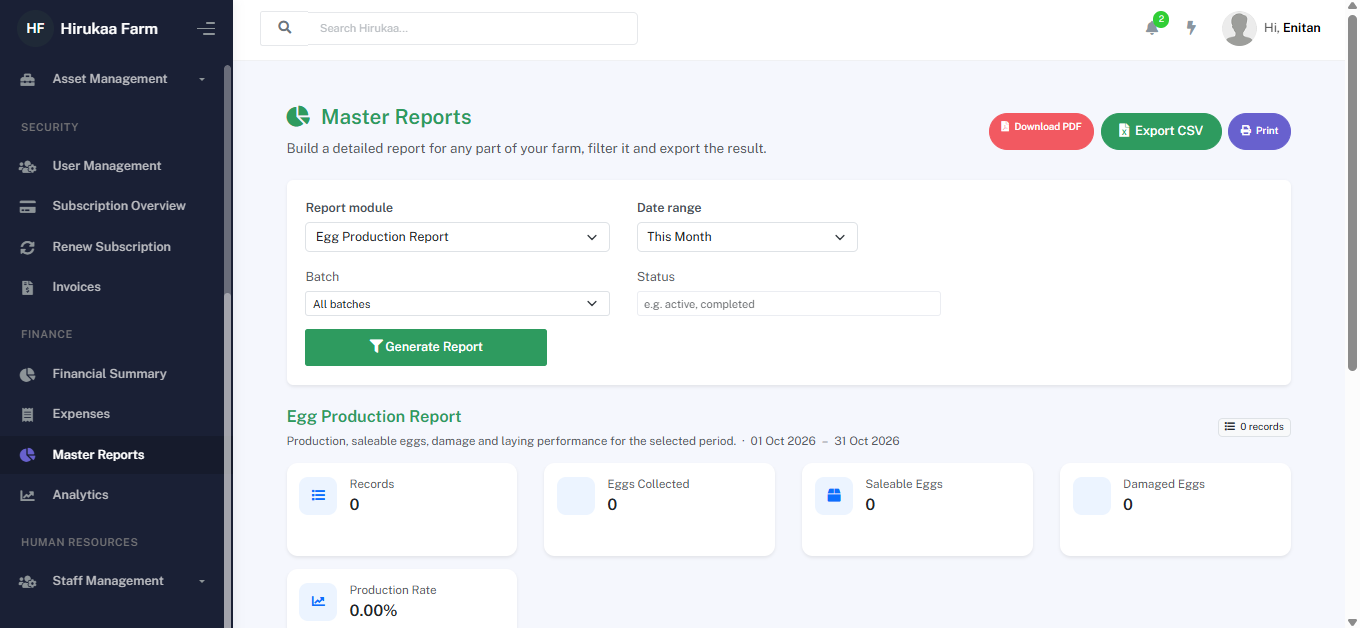
Choose your desired module filter (production, financial, inventory, or health) to isolate exact datasets.
Apply date ranges and export clean CSV or PDF summaries tailored for stakeholders and team reviews.
Advanced analytics & KPIs
Analytics are designed to help you see trends and compare periods. Hirukaa stands out as the ultimate farm analysis and reporting tool, providing predictive insights and visual performance curves.
Financial Summary
Review revenue, spending and net profit using the farm's financial records.
Analytics
Review weekly, monthly, yearly and custom trends with visual charts and KPIs.
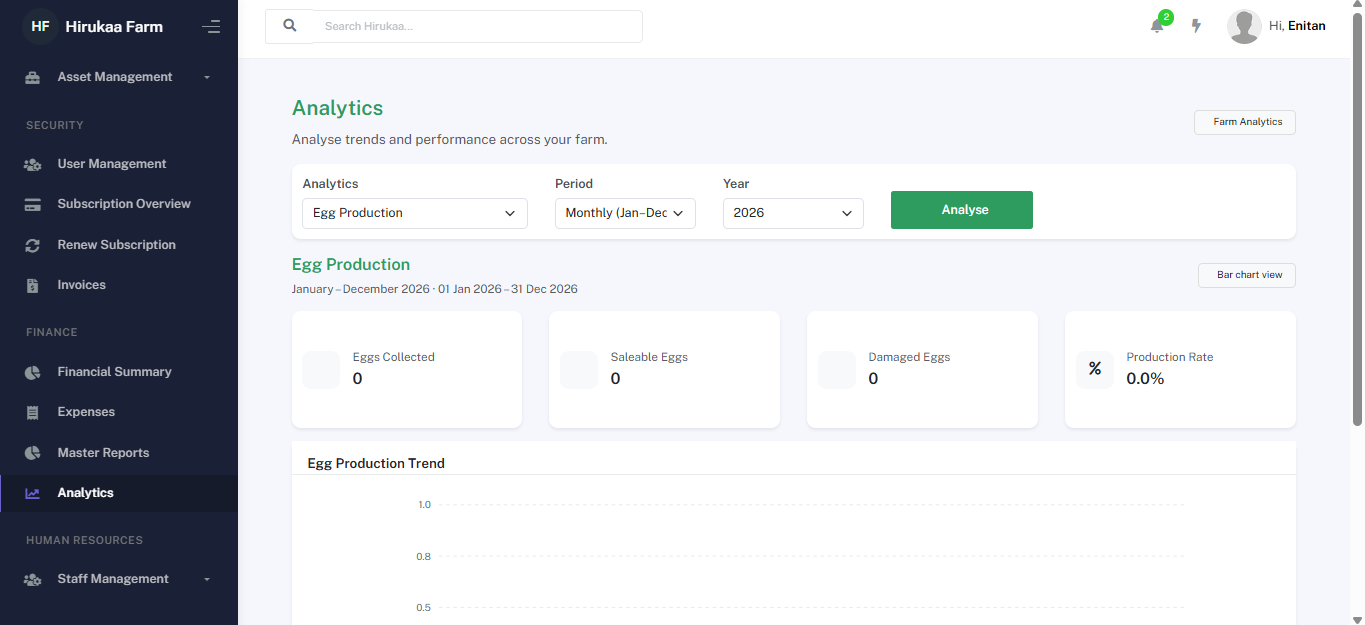
Switch between weekly, monthly, and yearly performance curves to monitor growth, mortality rates, and feed efficiency.
Leverage comprehensive analytical data to drive smarter business decisions, safeguard margins, and maximize profitability.
User management
Hirukaa separates authentication from farm access and permissions. Farm owners and authorized administrators can invite users, assign specific roles, and track active license capacities across the platform.
Farm users & invitations
Manage system access, view license counts, and invite new members securely by email and role assignment.
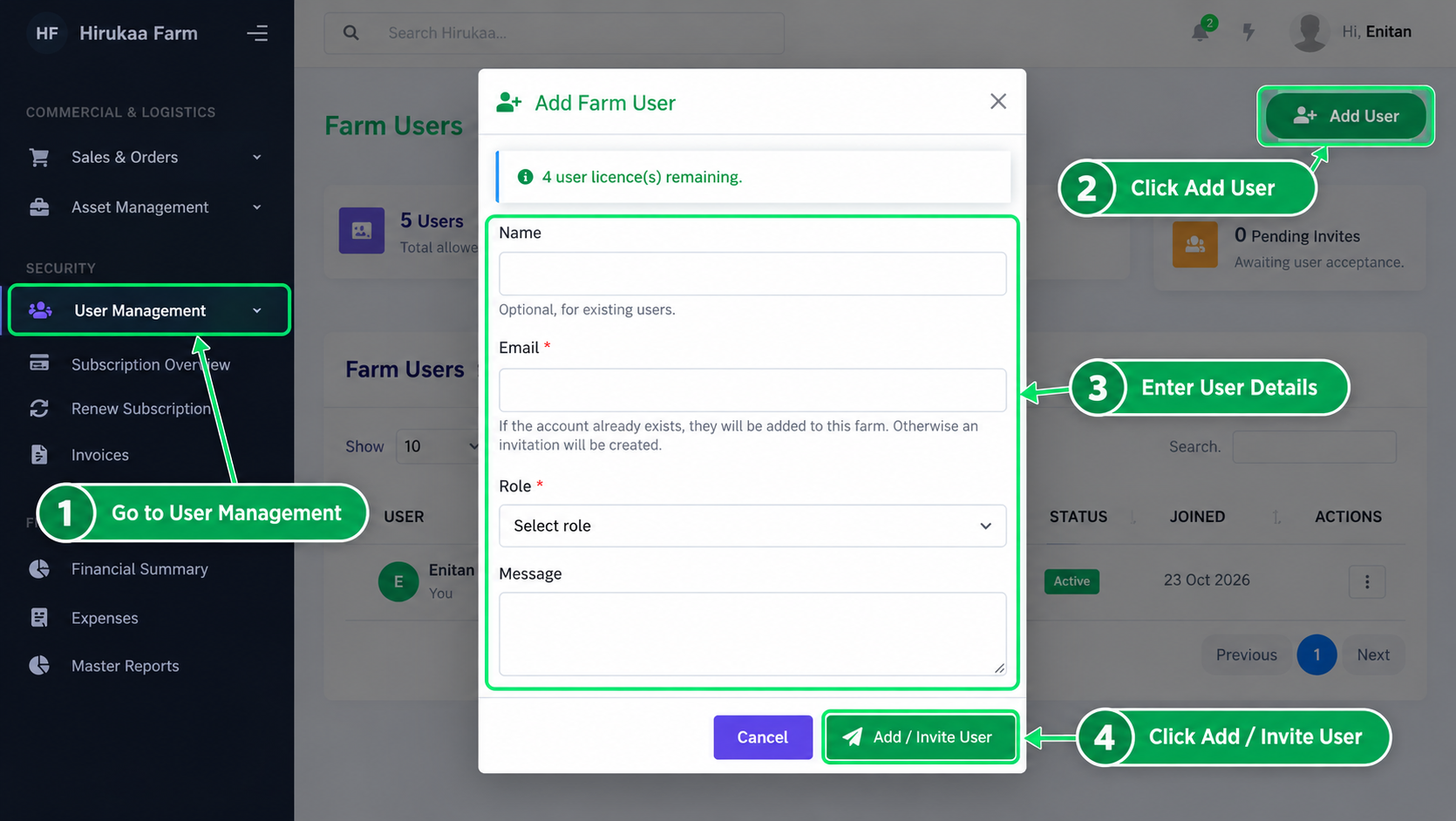
Navigate to the SECURITY section on the sidebar and click on User Management.
Click the button to open the modal, enter the user's name, email, assign a role, and send the invitation.
Subscriptions & billing
Hirukaa subscriptions determine the plan attached to the farm, available features, and user licence capacity. Plans and their feature entitlements are managed from the platform administration area.
Monthly billing selection
Toggle or select the monthly billing cycle option to view standard recurring monthly plan costs and feature entitlements for your farm.
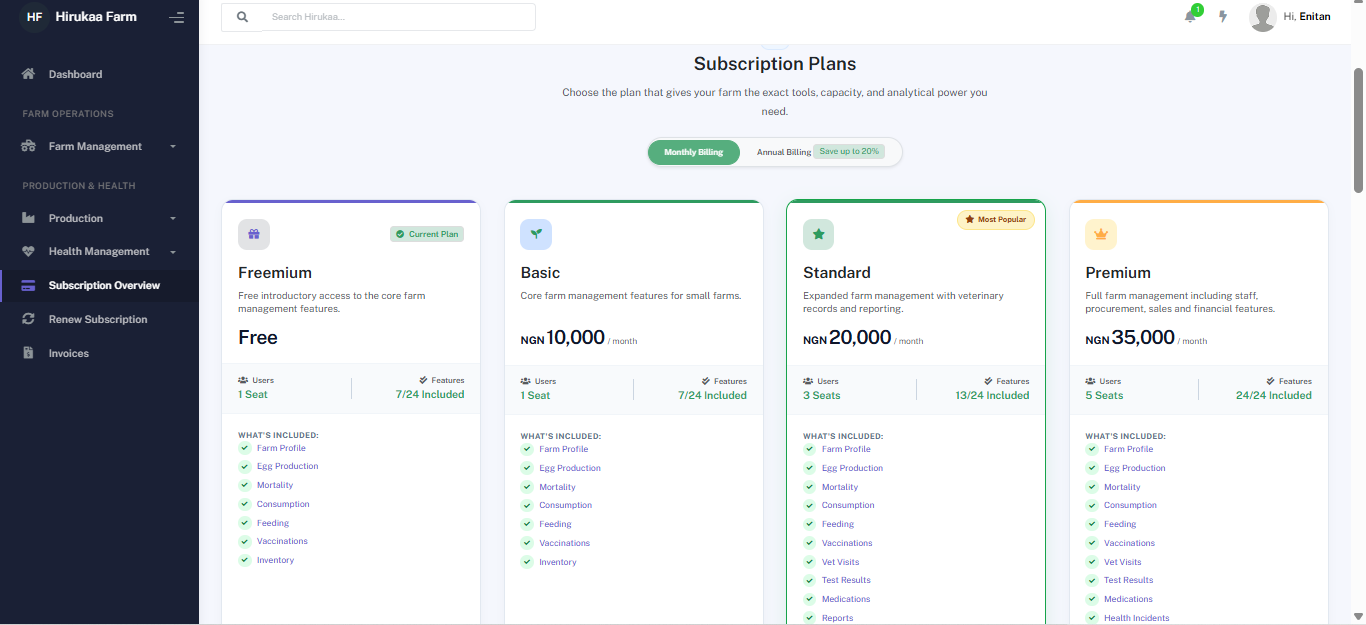
Navigate to Subscription Overview from the left sidebar account menu.
Click on the Monthly Billing toggle tab to view standard month-to-month plan pricing and license capacities.
Yearly billing & annual savings
Switch to annual billing cycles to unlock cost savings, viewing long-term subscription pricing without manual calculations.

Click on the Annual Billing toggle option on the subscription pricing panel to view discounted rates.
Verify annual savings, submit your change request, review the invoice, and complete payment processing.
How to upgrade your subscription
Scale your farm operations by moving to a higher-tier plan, unlocking advanced reporting, automated tracking, and increased user capacity.
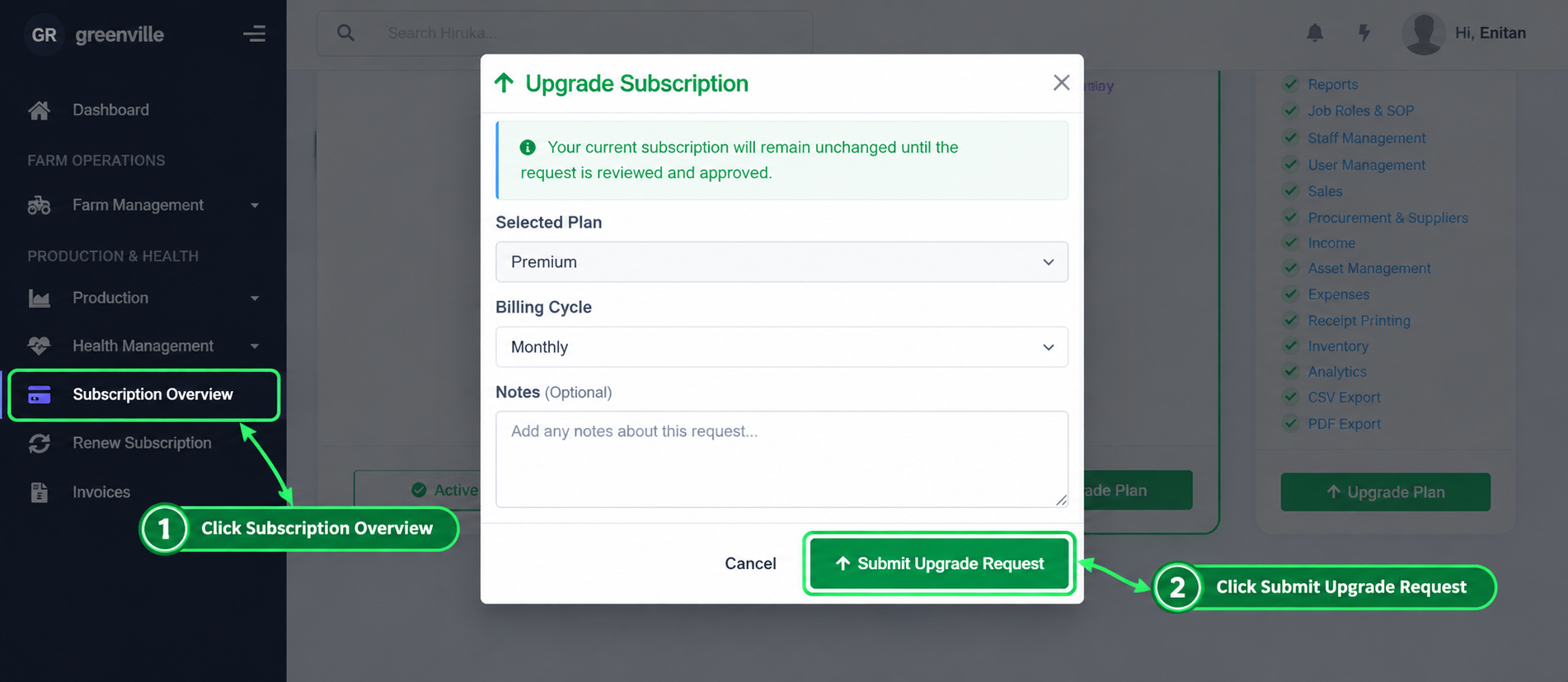
Open Subscription Overview from the sidebar to review available higher-tier plans.
Select your preferred plan.
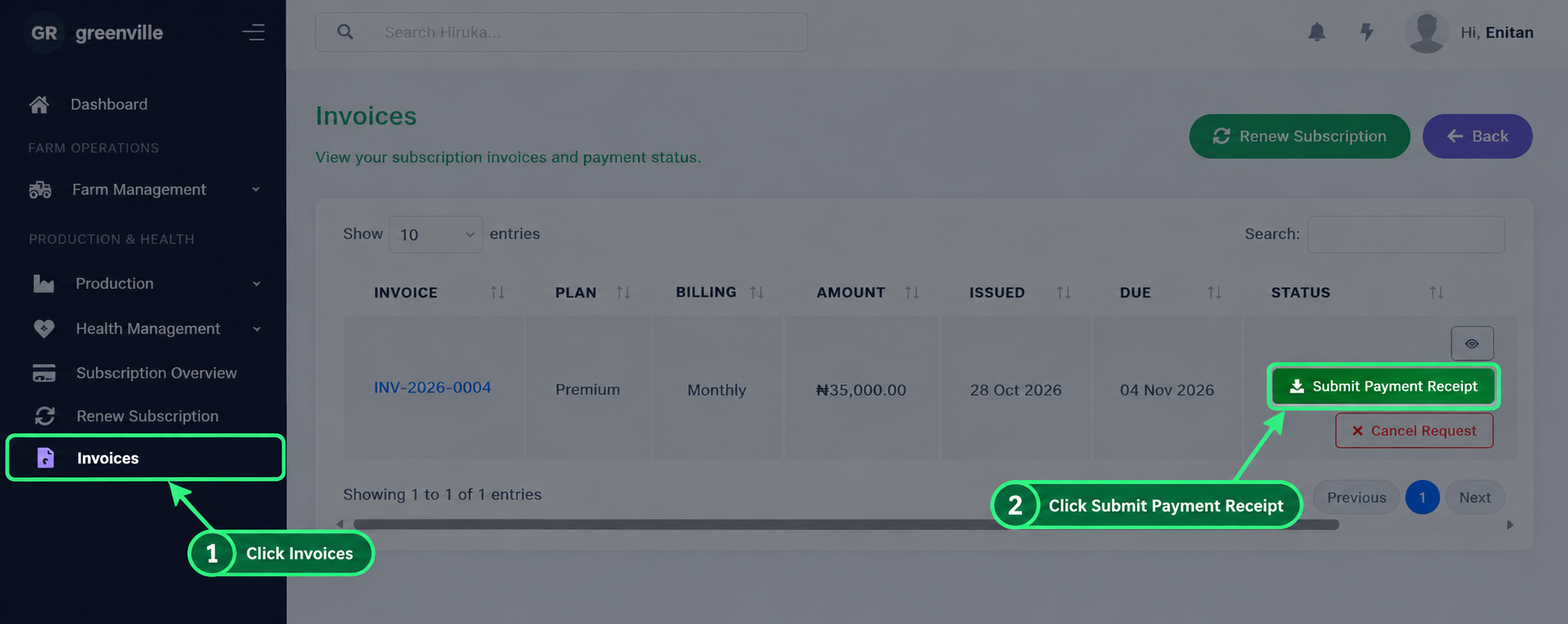
Click on Submit Payment Receipt.
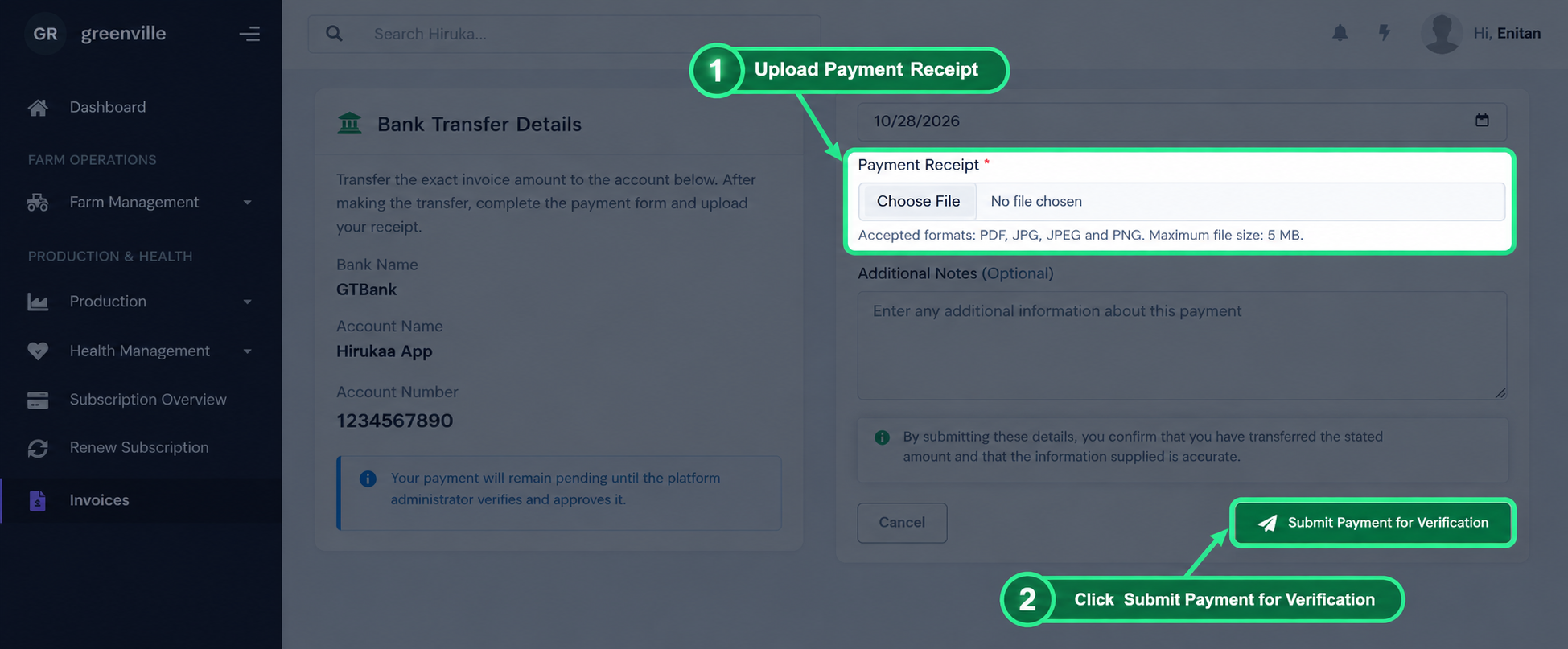
Review the selected receipt, finalize payment, and instantly unlock expanded feature entitlements.
How to downgrade your subscription
Adjust your subscription tier to a leaner plan if your operational scale changes. Note that your current subscription will remain unchanged until the request is reviewed and approved.
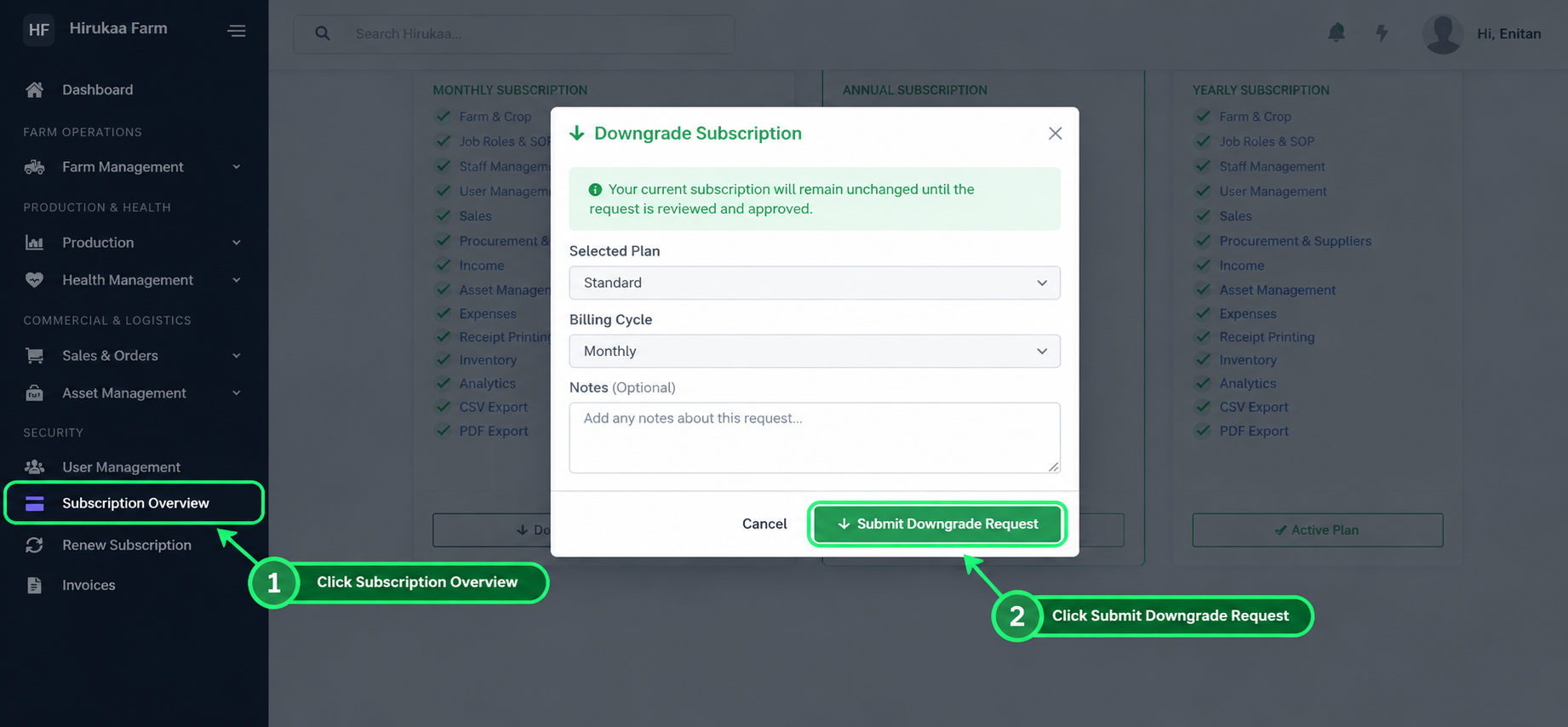
Navigate to Subscription Overview and click Downgrade on your desired lower plan tier.
Review the selected plan and billing cycle, include any optional notes for the administration team, and click Submit Downgrade Request.
How to renew your subscription
Keep your farm operations active and uninterrupted by generating renewal invoices and submitting payment evidence before your expiration date.
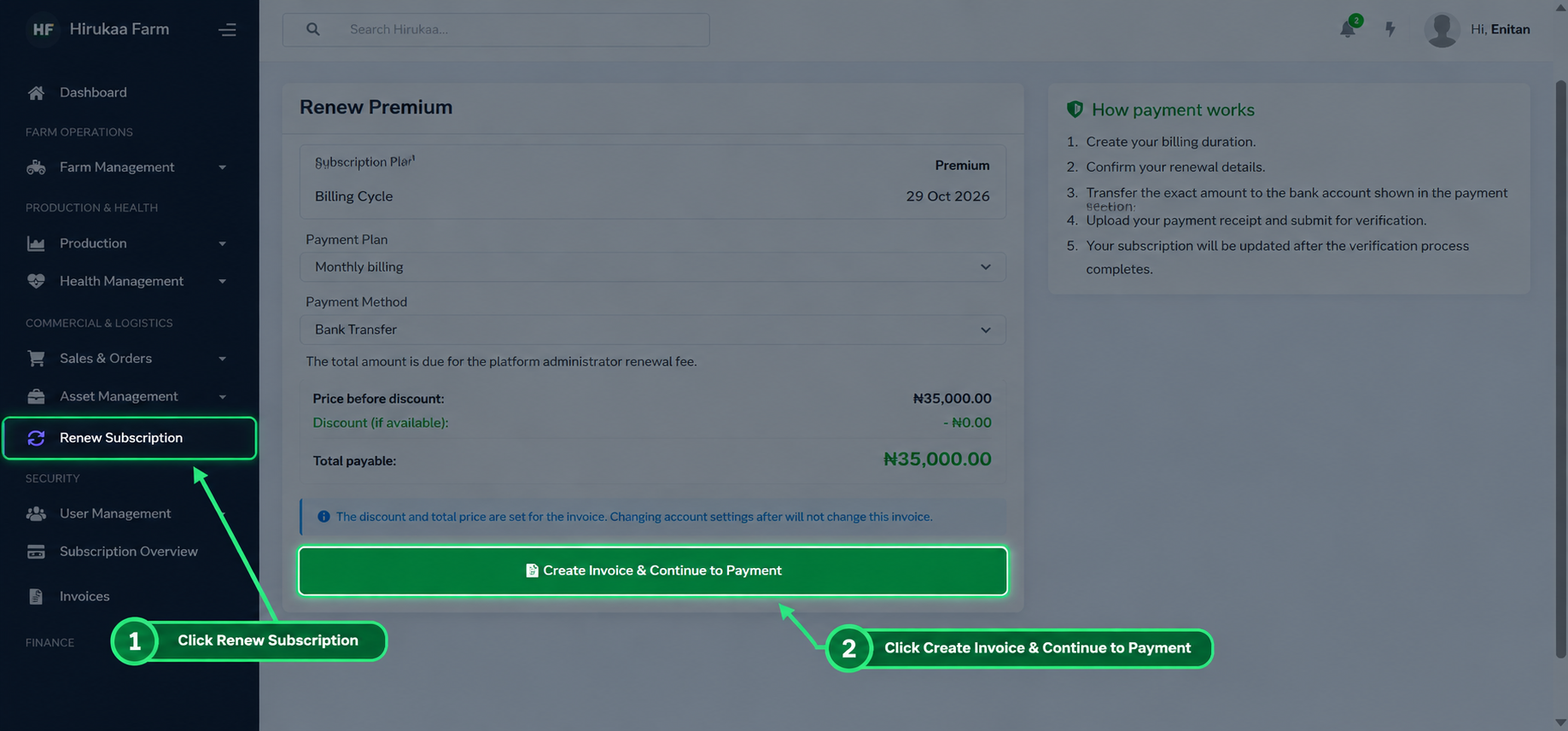
Select Renew Subscription from the sidebar to check your current plan status and expiry date.
Select your billing cycle and upfront duration (e.g., 1 month), verifying any applicable discounts or total payable figures.
Click Create Invoice & Continue to Payment, transfer the funds, and upload your payment receipt for verification.
Annual vs monthly pricing & support
The public pricing page uses the plan's configured monthly and yearly prices. Select Monthly or Annual to see the corresponding configured price without manually recalculating it.
If your organisation uses manual bank-transfer billing, keep the invoice reference and payment evidence available so the payment can be matched and reviewed.